- Tech Savvy Mag
- Phones and Apps
- What to do before you factory reset a phone
What to do before you factory reset a phone
Planning a factory reset phone procedure means you must back up your files, transfer security codes and sign out of accounts to prevent data loss.
Explained by Ansel Bledsoe
A factory reset wipes your personal device clean and returns the hardware to its original state. You must take a few critical steps before you tap that final erase button. Backing up your files, transferring your security codes and signing out of your accounts prevents permanent data loss. It helps get the device ready for its next owner.
Gather what you need before you start
You need to collect a few basic items before you wipe your personal data.
- A charging cable and a wall outlet to keep the battery full.
- A computer with a free USB port for local file storage.
- Your primary passwords for your cloud accounts and email.
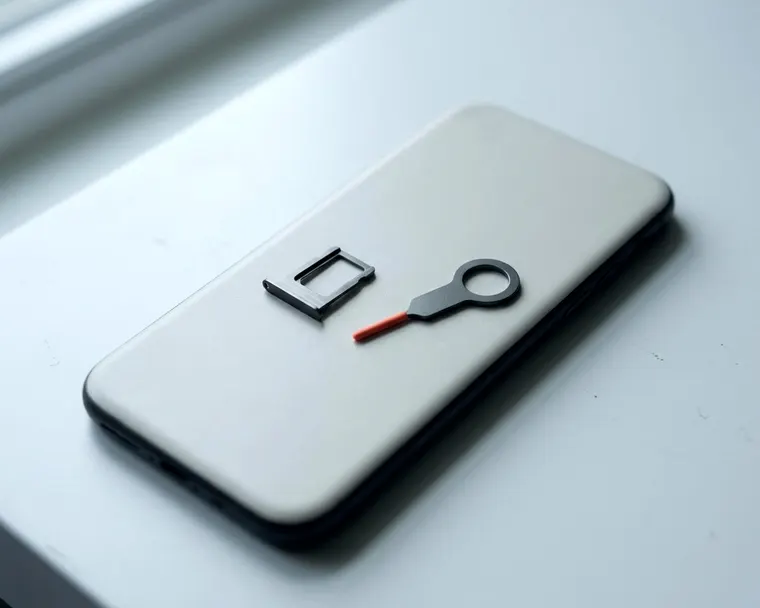
- A paperclip or a dedicated tool to open the physical card tray.
- A secondary device if you need to transfer security codes.
Having these tools on the kitchen counter saves you from searching for them later.
Back up your photos, contacts and messages
Save your files to a cloud service or plug the device into a computer. Your photos and messages will disappear forever if they only live on local storage. The FTC advises backing up your phone first so you have a copy of your information. Cloud backups happen over a wireless connection and store your data on remote servers.
Computer backups create a full localized copy on a hard drive. A cloud backup is often easier because it runs automatically in the background. You just need enough empty space on your cloud account to hold everything.
If your cloud storage is full, you might need to buy more space. You could also delete a few old videos to make room. A computer backup takes a little more effort, but it costs you nothing. You connect your device with a physical cable to start the process.
Then you use the manufacturer software to pull a full copy of your data. This method is helpful if you have a massive photo library. It also works great with a slow residential internet connection.
Text messages and contacts require special attention. They do not always copy over with basic file transfers. Check your settings to ensure your contacts sync with your primary email account. Some messaging apps require their own separate backup routine.
You have to open those specific chat apps to find their backup options. It takes extra time, but it ensures your conversation history survives the move.
Move your two factor codes and authenticator app
Export your codes to a new device before the reset. You could lose access to some accounts if you wipe the device early. Security apps generate temporary codes to let you into your online accounts. These specific apps tie themselves deeply to the physical hardware in your hand.
Many authenticator apps offer a transfer feature, so check your app's help pages for the steps. You open the app on your old device and generate a temporary barcode. Then you scan that barcode with the same app on your new device. Two factor authentication works by proving you hold an authorized device.
If you rely on text messages instead of an app, you must think about your phone number. If you are not keeping your number, the FTC says to update it with services that use it to verify your identity, and you may need to reactivate authenticator apps. Do this before you give up access to the old number.
Write down any recovery codes your accounts provided when you created them. These backup codes serve as a valuable safety net if the transfer fails. Keep them on a piece of paper in a safe place. You can throw the paper away once your new setup works perfectly.
Sign out of accounts and turn off device location locks
Manually sign out of your main cloud account in the settings menu. Modern devices include security locks to deter organized theft. These activation locks tie the hardware securely to your personal account. Check your phone maker's support pages to see how this lock works on your model.
This digital protection causes problems for someone buying your old device legally. Go into your main settings menu and find your account name at the top. Tap it, and then look for the sign out option at the bottom. The system will ask for your password to verify and confirm the action.
Typing your password usually turns off tracking features and releases the lock tied to your account. Skipping this step can leave the device tied to your account, and a reset phone that is still linked may ask the next owner for your sign in.
That can leave the next owner unable to use it. You should also unpair any connected accessories before you sign out. Your wireless headphones and smartwatches look specifically for your exact hardware. Open your Bluetooth settings and tell the device to forget those older connections.
This extra step stops your accessories from searching for a device you no longer own.
Take out the SIM and any memory card
Pull out your small removable cards before you hand the hardware to anyone else. Your physical connections to your cellular network stay on these cards. The FTC says to remove the SIM card and any SD memory card, keeping the SIM only if you are moving your number.
The SIM card holds your phone number and your network identity. It lives in a small tray on the side or bottom of the device. You open the tray by pushing a paperclip into the tiny hole next to it. The tray pops out just enough for you to grab it safely.
An SD memory card holds extra personal files like photos and music. Some devices put the memory card in the exact same tray as the SIM card. Take both tiny cards out. Then carefully put the empty tray back into the empty slot.
The new owner does not need your old network cards. You can destroy an old SIM card by cutting it in half with scissors. You can keep an SD card to use in another compatible device. You can also format the memory card separately to use it as a clean storage drive.
Not all modern devices have a physical tray to remove. Many newer models rely on a digital connection called an electronic SIM. This software version of a physical card lives directly on the internal hardware. You cannot pull it out with a paperclip.
You must delete it during the software reset process instead.
Run the reset from settings
Tap the erase all content or factory data reset button deep in your settings menu. You are ready to erase the hardware once your data is totally safe. The FTC says to restore or reset the phone to factory settings to erase its data before you get rid of it. This step is necessary if you are selling the device.
Sometimes a fresh start is the only way to fix a device that acts strange. If you read about why a phone keeps restarting, you know a reset is a final step. The process may clear out software errors. You will find the reset option deep inside your main settings menu.
It usually lives under a general system or a backup heading. Look for specific words like erase all content, factory data reset or wipe device. The exact phrasing varies slightly between different manufacturers. Plug your device into a wall outlet before you tap the erase button.
The process uses a lot of battery power and can take a while. A reset interrupted by a dead battery can cause problems, so keep the phone plugged in. The device will ask for your passcode one last time.
Enter the code and tap the final red confirmation button. You will usually get a prompt asking if you want to erase any downloaded electronic SIM profiles. Choose to erase them completely if you are giving the device away. The screen will go dark and display a progress bar while it works.
Check the phone is truly wiped before it leaves your hands
Wait for the progress bar to complete and look for the factory welcome screen. You should verify the erasure finished correctly before you box up the device. The screen will turn back on eventually. A fully wiped device displays the exact same screen you saw when you unboxed it.
This welcome screen usually says hello in multiple different languages. It will ask you to choose a language and connect to a wireless network. Do not proceed past this initial welcome screen. You will begin setting it up again if you connect to a home network.
Seeing the language selection is a good sign the reset finished. Hold down the power button to shut the device off completely. Then it is ready to trade in or sell.
You can also hand it down to a family member safely. You hand it over knowing you took the main steps before it left your hands.