- Tech Savvy Mag
- Phones and Apps
- Using your phone as a Wi-Fi hotspot without burning through data
Using your phone as a Wi-Fi hotspot without burning through data
Learn how to use a portable Wi-Fi hotspot to keep your laptop connected during an outage without wasting cellular data or draining your phone battery.
Explained by Ansel Bledsoe
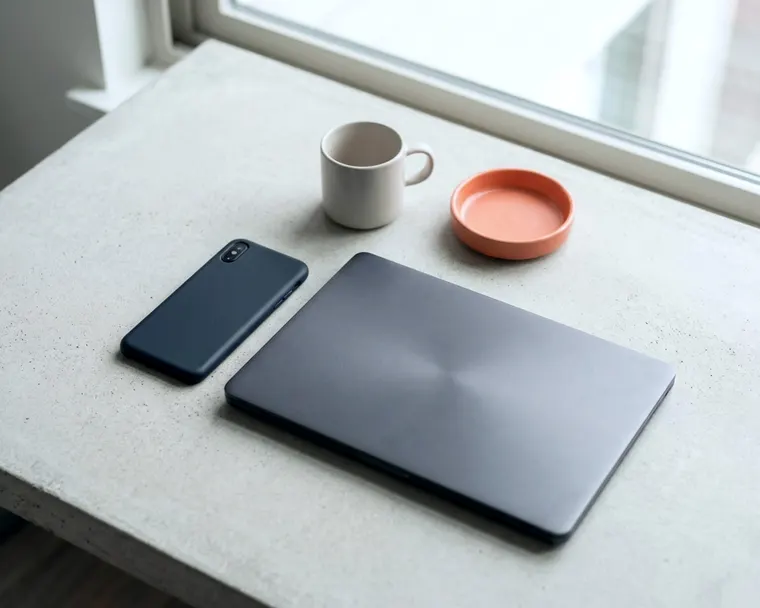
Turn on your phone's personal hotspot to share its cellular connection with a laptop or tablet. This feature turns the device in your pocket into a temporary router. You get internet access on a larger screen without relying on unsecured public networks or hunting for a cafe with a working connection.
When a portable Wi-Fi hotspot makes sense
Your home internet goes down right before a video call. A hotel network refuses to load plain text emails. In these moments, your phone acts as a portable Wi-Fi hotspot to bridge the gap. It pulls a cellular signal from your carrier and creates a small, private Wi-Fi network for your other devices.
Relying on your phone is usually safer than joining an open network at an airport or coffee shop. You control the connection and the password. If you wonder if free public Wi-Fi is safe to use when you travel, the short answer is that a personal hotspot with a password you set is usually the safer choice. That lowers the chance of others intercepting your data.
Using your phone this way is meant for short bursts of work. You can answer emails, finish a presentation, or send a document. It is not designed to run a whole household, stream high-definition movies all night, or download large software upgrades.
Some carriers cap hotspot data, even on unlimited plans, so check your plan. Once you hit a cap, your connection may slow down. You might still be able to load a web page, but video calls will drop and large files will fail to send.
Turn the hotspot on and connect your devices
Most modern smartphones have a built-in hotspot feature. You just have to find the switch in your settings menu and know how to link your computer.
On an iPhone, open the Settings app and tap Personal Hotspot. Toggle the switch that says Allow Others to Join. The screen will display the network name and the Wi-Fi password.
Leave this screen open while you connect your computer. Keeping the screen awake can help while you connect.
On an Android phone, open Settings and tap Network and internet. Tap Hotspot and tethering, then tap Wi-Fi hotspot. Turn the switch on.
You will see the network name and password listed right there. Keep the screen active for a minute while you prepare your laptop.
Move to your laptop and click the Wi-Fi icon in the taskbar or menu bar. Look for the name of your phone in the list of available networks. Click it and type the password exactly as it appears on your phone screen. The laptop will connect, and you can open a web browser to test the link.
What to do if your laptop refuses to connect
Sometimes a computer will see the hotspot Wi-Fi network but fail to connect. When this happens, start by turning the phone hotspot off and back on again. This simple reset forces the phone to broadcast a fresh signal.
If the laptop still refuses to join, you might need to make the computer forget the network. Open your laptop Wi-Fi settings and find the list of saved networks.
Right-click the name of your phone and select forget. This deletes the old connection data. Click the Wi-Fi icon again, select your phone from the list, and type the password in fresh.
Restarting both devices is the next best step. A quick reboot clears out temporary software glitches on the phone and the laptop. Once both devices power back up, try connecting again from the beginning.
Use a cable if the wireless signal struggles
Sometimes a crowded room full of other Wi-Fi networks will interfere with your hotspot. You can bypass the wireless interference completely by using a USB cable. Plug the charging cable into your phone and connect the other end to your laptop.
Your computer will usually recognize the phone as a wired internet connection. This method offers a more stable link and keeps your phone charged at the same time. You still need to have the hotspot feature turned on in your phone settings for the wired connection to work.
Give the connection a strong password
Your phone assigns a default password to your hotspot when you first buy it. You should erase this and type in a new one immediately. A strong password keeps nearby strangers from logging on and using up your data allowance.
Tap the password field in your hotspot settings menu. Delete the random string of letters and numbers provided by the manufacturer. Type in a new password made of a few ordinary words strung together.
You do not need complex symbols or random capitalization. A long phrase is easy for you to type into a laptop but very hard for a computer to guess.
Anyone sitting in the same room or the next apartment can see your network broadcasting. Without a secure password, their devices might connect automatically. They could use up your data just by watching a video.
Change the network name to something recognizable
While you are in the settings menu, you can also change the name of your phone. This name is what your laptop sees when it scans for Wi-Fi. Many phones default to a generic name.
Changing the name helps you find your own signal in a crowded place. Go into your phone settings and look for the general or about phone menu. Change the device name to something specific. When you turn the hotspot on again, your new custom name will appear in your laptop Wi-Fi menu.
Stop background updates from eating your data
Laptops treat your phone hotspot just like your home internet router. They assume the data is unlimited and free. If you do not change a few settings, your computer will immediately start downloading large files in the background.
Cloud storage apps are the biggest offenders. They try to sync photos, videos, and large documents the second they detect a Wi-Fi connection. Pause your cloud backup software before you connect to the phone. You can usually right-click the cloud icon on your computer taskbar and choose to pause syncing for a few hours.
Software updates also drain data fast. Your laptop might decide today is the day to install a massive operating system upgrade. You can stop this by telling the computer that the Wi-Fi connection is metered.
On a Windows laptop, connect to the hotspot and open the Wi-Fi settings. Click the properties for your phone network and turn on the switch for a metered connection. This tells Windows to limit some updates and background downloads.
On a Mac, click the Wi-Fi icon at the top of the screen and open the network preferences. Select your phone hotspot and check the box labeled Low Data Mode. This reduces background network use such as automatic updates.
Track your data usage as you work
You do not have to guess how much data your laptop is pulling through the hotspot. Your phone keeps a running total of your usage right in the settings app. Checking this number helps you avoid surprise slow-downs later in the month.
On an iPhone, open Settings and tap Cellular. Scroll down to the Cellular Data section. You will see a list of apps and a specific entry for Personal Hotspot. This shows exactly how much data your connected devices have consumed.
On an Android device, open Settings and tap Network and internet. Look for Internet or Data usage. You can view a breakdown of how much data the hotspot feature has used during your current billing cycle. Check this screen after your first hour of work to see if you need to cut back on your internet use.
Limit video quality on streaming sites
Video calls and streaming sites use a lot of data. If you have to join a video meeting, go into the application settings and turn off high-definition video. A standard definition stream is perfectly fine for most meetings and uses less cellular data.
If you are watching a video on a website, click the gear icon on the video player. Change the resolution to a lower setting. The picture will be slightly less sharp, but it will help you use less data.
Keep the phone cool and charged while it shares
Broadcasting a Wi-Fi signal while pulling down cellular data works a phone hard. The processor and the radios run constantly. This can generate heat and drain the battery faster.
If the phone feels hot, take it out of its case while the hotspot is active. A case can trap heat against the back of the device.
Place it on a hard, flat surface like a wooden desk or a kitchen counter. Never leave it on a bed, a couch, or a pile of papers. Soft materials hold heat in and can cause the device to overheat and shut down.
Place the phone near a window
Your phone works harder when it has a weak cellular signal. If you are deep inside a building, the internal modem pushes more power to the antennas to maintain the link to the cell tower. This creates even more heat and burns through the battery faster.
Move the phone closer to a window to get a better signal. A strong connection allows the phone to work efficiently. Just keep the device out of direct sunlight. Heat can make a phone slow down or shut off to protect itself.
Plug the phone into a wall outlet if you plan to share the connection for more than a few minutes. The battery will drop fast if it has to power the hotspot on its own. Using the charging cable and a wall adapter that came with the phone helps it keep broadcasting.
There are habits that help your phone battery last longer over its lifespan. Keeping the device cool is one of the most effective. If the phone feels uncomfortably hot to the touch, turn the hotspot off and let it rest.
Try Bluetooth tethering for lighter tasks
Broadcasting a Wi-Fi signal takes a lot of power. If your phone battery is running low and you do not have a charger, you can share your connection over Bluetooth instead. Bluetooth tethering is much slower than Wi-Fi, but it uses much less battery power.
Pair your phone and your laptop using the Bluetooth menu on both devices. Once they are paired, go to the hotspot settings on your phone and turn on Bluetooth tethering. You can then use your computer to browse text-heavy websites or send plain emails. This method is too slow for video calls, but it is a reliable backup when battery life is your main concern.
Switch the hotspot off to save your battery
You must manually turn the hotspot off when you finish your work. Some phones will automatically disable the feature if no devices are connected, but you cannot rely on this. An active hotspot continues searching for connections and eats away at your battery reserves.
Go back into your phone settings and flip the hotspot switch to the off position. Check the top of your phone screen to make sure the hotspot icon disappears. Disconnecting your laptop is not enough. The phone will keep broadcasting the network name until you tell it to stop.
Turning the feature off completely also prevents your laptop from reconnecting by accident later. You want to be in full control of when you use cellular data.