- Tech Savvy Mag
- Accounts and Security
- How two factor authentication works
How two factor authentication works
Find out the two factor authentication meaning and how to set up two factor authentication using text codes, an app authenticator or a security key.
Explained by Beatrix Aldridge
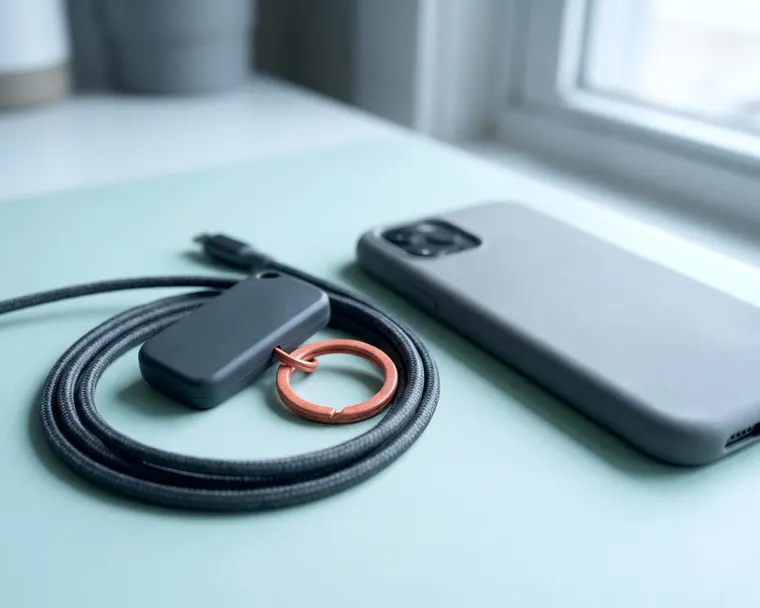
2 factor authentication is a security feature that requires two different forms of proof to access an account. You enter your password first and then provide a second piece of evidence to prove you are really the person logging in. This extra step makes it much harder for anyone who guesses or steals your password to get into your email or bank account.
The elements of a second factor
A password alone is not enough to keep an account safe. Many people reuse the same password across multiple websites.
If one small website suffers a data breach, criminals try that same password on your bank and email accounts. Finding out the two factor authentication meaning helps you add a second lock to the door.
The FTC explains how this works. Two factor authentication asks for credentials from two of three groups: something you know, something you have or something you are. Your password falls into the first group because it is something you know. The second factor must come from one of the other two groups.
Something you have is usually a physical item. It could be your smartphone receiving a text message or a special USB drive you plug into your computer. Something you are involves a physical trait. Your phone reads your fingerprint or scans your face to confirm your identity.
Text and email codes and their weak spot
Many websites offer a text message or an email as a second factor. You type your password and the screen pauses. The site sends a message to your phone or inbox. You read the code and type it into the website to finish logging in.
The FTC says text or email passcodes are usually six digits and expire after one login. They are easy to use because you already know how to check your messages. You do not need to install anything new.
However, text messages have a known weak spot. Criminals can trick your phone carrier into moving your phone number to a device they control. This is a SIM swap attack. Once they take over your number, they receive your text messages.
If they also have your password, they can log in. Email codes share a similar problem. If a hacker gets into your email account, they can read the code the website just sent there. This is why text codes are better than nothing but weaker than other methods.
How an app authenticator generates codes
An app authenticator lives on your smartphone and generates login codes locally. You download a free program from your phone app store. When you log into a website, you open the app instead of waiting for a text message. The app displays a code that changes regularly.
You type that code into the website to get in. The app does not need a cell signal or an internet connection to make these codes. It uses a secret key shared with the website when you first set it up.
The app and the website run the same mathematical formula using the current time and that shared key. If the codes match, the website knows you have the correct app. You can use the same app to store the codes for all your different accounts.
The FTC says codes from an authenticator app are safer than text codes because they are not vulnerable to SIM swap attacks. A criminal cannot intercept the code in a text message because the code is never sent that way. Authenticator apps are a stronger choice than text codes for everyday accounts.
Security keys and why they are the strongest choice
A security key is a small physical object that often looks like a basic USB thumb drive. Some plug directly into your computer. Others use near field communication so you can just tap them against the back of your smartphone. Instead of typing a code, you insert or tap the key.
The FTC calls security keys the strongest method of two factor authentication. The FTC says they are strongest because they do not use credentials that hackers can steal. If you accidentally visit a fake website that looks exactly like your bank, a code typed from an authenticator app could still be captured.
The criminal takes that typed code and logs into the real bank. A security key operates differently. Keys are designed to confirm they are tied to your real account, so a copycat site is less likely to work.
You must buy a physical security key from a retailer. They cost money and you have to carry them with you. You also need to keep track of them because losing your only key can lock you out of your accounts. Many models do not need batteries.
Consider buying two keys, keeping one with you and storing the second in a safe place at home.
Which accounts to protect first
You might have dozens of online accounts. Securing every single one on the same day is a quick way to get frustrated. Start with the accounts that hold your most sensitive data or control access to your other services.
Your main email address is the single most important account to secure. If someone gains access to your email, they can use it to reset passwords on many other sites you use. They can click the forgotten password link on your bank or shopping site. The reset email arrives directly in your inbox.
Turn on two factor authentication for your email before you do anything else. Next, protect your financial accounts. Banks, credit card companies and retirement portals hold your money and your sensitive identity details. Many banks offer two factor authentication, and the FTC suggests turning it on for bank accounts.
Make sure it is turned on and try to use an app rather than text messages if the bank allows it. Your next priority is any service that stores passwords or credit card numbers. If you use a password manager on your phone, securing it is vital.
Finally, secure your main social media accounts. Hackers often steal social media profiles to run scams on the original owner's friends and family.
How to set up two factor authentication
The process to turn on a second factor varies slightly from site to site. You will generally find it in the security or privacy section of your account settings. Setting up two factor authentication is often quick.
Log into the website on your computer. Find the security settings and look for a button to turn on two factor authentication. The site will ask you to choose your method. If you choose an app, the website displays a square barcode on the screen.
You open your app and tap the button to add a new account. The app activates your phone camera. You point the camera at the barcode on your computer screen. The app reads the barcode and starts generating codes.
You type the current code into the website to prove the setup worked. The website will then give you a short list of backup codes. These are emergency passcodes you can use if you lose your phone or security key. You must save these backup codes before you click away.
- Write the backup codes on a piece of paper and put it in a safe place.
- Print the screen and file the paper with your important documents.
- Save the codes in a secure digital password manager.
If you drop your phone in a lake and do not have backup codes, you might permanently lose access to your account. Customer service might not be able to help you bypass the security lock.
Handling an unexpected login code
Sometimes your phone buzzes with a text message containing a login code you did not request. You might see a push notification asking you to approve a login from a strange city. This may mean someone else has your password and is trying to get into your account.
The most important rule is to ignore the prompt. Never approve a push notification you did not initiate. Never reply to a text message or read a code aloud to someone on the phone. Criminals sometimes call pretending to be fraud investigators.
They tell you they need the code that just arrived on your phone to cancel a fake charge. They are actually the hacker trying to bypass your second factor. If you read them the code, they will log in.
Your account is safe for the moment because the two factor authentication did its job. It stopped the attacker at the second step. However, the attacker does know your password. You need to change that password immediately.
Go directly to the website by typing the address into your browser. Do not click any links in an unexpected text or email. Log in and change your password to a long phrase you have never used before. If the password was used on multiple sites, you might need to protect your other accounts as well.