- Tech Savvy Mag
- Screen Problems
- 5 causes of a black spot on a laptop screen and what to try
5 causes of a black spot on a laptop screen and what to try
A black spot on a laptop screen often points to a dead pixel, physical pressure damage or surface dirt. Find the cause and see what to try next.
Explained by Ansel Bledsoe
A black spot on a laptop screen often points to physical damage, a dead pixel or stubborn dirt. You can rule out a simple smudge with a quick cleaning. True hardware damage requires a replacement screen or a decision to live with the mark.
1. Tell dirt, a dead pixel and a pressure spot apart
Look closely at the mark from different angles while the laptop is turned on. A surface smudge looks raised and catches the light differently than the smooth glass around it. A dead pixel usually looks like a tiny dot. It usually stays black no matter what colors appear on the screen.
Change your viewing angle to see if the spot stays flat against the image. A dead pixel sits inside the display layer and stays put against the image. Surface debris sits on top of the glass and can seem to shift slightly against the background when you move your head.
Pressure spots or bruises look like dark shadowy clouds with soft edges that blur into the normal display area. Turn the screen brightness all the way up and open a blank white document. Dirt tends to look solid, while a pressure bruise may let some light through and look softer or tinted.
Sometimes a cluster of dead pixels forms a larger irregular shape, which often has sharper edges. A pressure mark often looks soft and cloudy. Physical hardware defects will not wipe away.
2. Clean the screen safely before you assume damage
Always wipe the screen down before you assume the display is broken. A tiny speck of food can dry flat against the screen and look exactly like a dead pixel until you wipe it away. Turn the laptop off completely and let the glass cool down to room temperature. Check your laptop maker's cleaning instructions before you start.
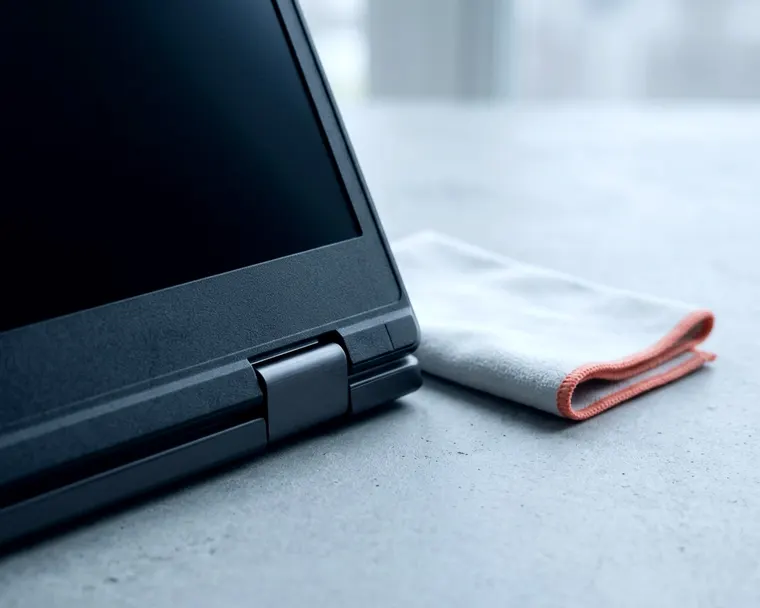
A dark screen makes it much easier to spot raised dirt and sticky residue. Dampen a soft microfiber cloth lightly, using the kind of water or cleaner your laptop maker recommends. Never spray liquid directly onto the screen, as it can run down into the bezel. Moisture that gets inside can cause damage, which calls for fast steps to handle water damage.
Wipe the black mark on a laptop screen using gentle circular motions, as pressing hard can damage the screen. If the spot remains after a careful wipe, you have a hardware problem and should not keep scrubbing. Avoid household glass cleaners, paper towels and rough sponges. Harsh chemicals and rough materials can damage the screen coating or scratch it.
3. Check whether the spot shows on an external monitor
A dark mark might actually be a graphics processor failure rather than a broken display panel. You can test this by plugging your laptop into a desktop monitor or a television. Use an HDMI or DisplayPort cable to connect both devices. Turn them both on and mirror your display so the same image shows on both screens.
You can activate the external display by pressing the dedicated screen key on your laptop keyboard. This key usually has a small icon of a monitor printed on it. Pressing it cycles through options to extend your desktop or mirror your screen. Choose the mirror option.
Look at the external monitor carefully. If the black patch on a laptop screen shows up in the exact same spot on the television, the panel is probably fine and the flawed image is likely coming from the graphics hardware or its drivers. You might need to update your graphics drivers or replace the hardware. When the external monitor looks perfectly clear, the issue is isolated to the laptop screen itself.
Internal display cables can also cause strange visual glitches when they pinch or fray. A loose cable more often causes lines or flicker than a single spot. Cables are a separate suspect, so read how to rule out loose connections if you also notice lines or flicker.
4. Why pressure and drops leave dark patches
Laptop screens use extremely thin layers of glass, plastic diffusers and liquid crystals. These layers need precise spacing to work correctly. Dropping a closed laptop or pressing on the lid can squeeze these layers together. Resting heavy objects on a closed laptop can do the same.
Severe pressure can push the liquid crystals out of alignment or damage the layers behind the panel. That can leave a dark spot that looks like an ink stain. The damaged section may no longer pass light or change color correctly.
A tightly packed backpack can put pressure on the lid. Heavy items may bend it and press the screen against the keyboard. Packing the laptop in a padded compartment helps protect the lid.
A pen or small USB drive left on the keyboard when you close the lid can press into the screen and damage it. The hard object concentrates force on one point. That can leave a mark or crack that looks different from a smudge.
5. What a spot that spreads says about the panel
A dark spot that grows over a few days often points to ongoing panel damage. The exact cause is hard to confirm without a technician, but a spreading mark is a sign the panel is failing. It can take up more of your usable screen over time.
A spreading mark may not stop on its own. Opening and closing the lid or temperature changes might make some damage worse, and a repair technician can tell you what is happening.
A growing mark might develop branches or ragged edges, and nearby colors might shift. These can be signs of panel damage, but only a repair technician can confirm the cause.
If the spot keeps creeping across the glass, you may eventually lose usable screen space. Software cannot fix a damaged panel, and pressing on the screen or its edges can make damage worse. Avoid pressing on it. A spreading spot suggests the screen may keep getting worse.
Decide whether to repair or replace the laptop
A physically broken display panel cannot be fixed with software updates or screen calibration tools. The fix is usually a replacement panel or screen assembly. Choosing between a repair and a brand new computer depends on how old the machine is and what tasks you do.
On a cheap older laptop, a screen replacement may cost more than the machine is worth, so get a quote before you decide. You can find a budget laptop that handles your daily web browsing and document editing perfectly well.
On a newer or premium machine, a screen replacement may be worth paying for, and it is worth checking whether a warranty or protection plan covers it. The model number is often printed on a label or etched into the bottom of the laptop. Search for this exact number online to find a compatible display assembly.
Many laptop screen replacements involve prying off the bezel, removing small screws and disconnecting a fragile ribbon cable, and a small mistake can tear that cable.
If you feel uncomfortable taking delicate electronics apart, a local repair shop can usually handle the swap, so ask for a quote. Alternatively, you can plug the laptop into an external monitor on your desk, which turns it into a stationary desktop setup.