- Tech Savvy Mag
- Screen Problems
- Why a laptop screen looks fuzzy and what to check first
Why a laptop screen looks fuzzy and what to check first
A fuzzy laptop screen usually means a mismatch in your display settings or a simple driver error. Learn how to fix fuzzy text and images on a laptop screen.
Explained by Ansel Bledsoe
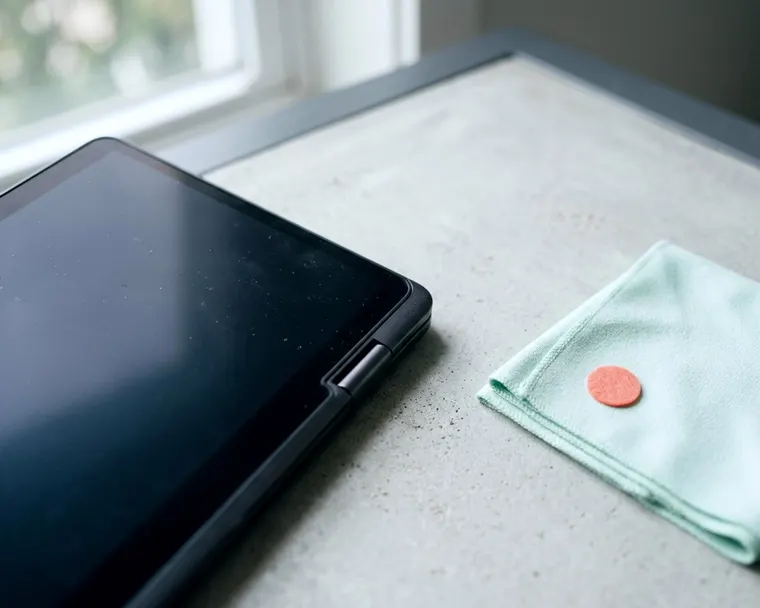
A fuzzy laptop screen usually points to a software mismatch between the display panel and the operating system. Cleaning the glass and adjusting a few display settings will often bring the text back into sharp focus. Hardware failures happen, but software is often the culprit.
Clean the screen and rest your eyes first
Fingerprints and dust build up fast on a glossy glass panel. A thick layer of grime scatters the light coming from the pixels behind it, making sharp text look soft and blurry. Wipe the glass down with a dry microfiber cloth before you change any settings. A damp cloth helps lift stubborn grease, but follow your maker's cleaning advice and never spray cleaner directly onto the laptop.
Your own vision might be the real issue. Staring at a bright rectangle for hours can tire your eyes, which can make text look soft. Step away from the desk and look at something distant for a few minutes.
Lighting in the room plays a role too. Overhead lights reflect off the glass and wash out the contrast. A screen with low contrast often looks less sharp than a bright one in a dark room. Tilt the lid or close the blinds to cut the glare.
Check the resolution and scaling settings
Every display panel has a native grid of physical pixels built into the hardware. The operating system must send a signal that matches this grid exactly. Software that sends a smaller picture forces the computer to stretch the image across the physical pixels. This stretching process ruins the crisp edges of letters and icons, leaving a fuzzy halo around everything.
Open your system display settings and look for the resolution menu. The software usually labels the correct choice as the recommended option. Select that native option to map the software output perfectly to the hardware grid. The screen might go black for a second while the graphics card resets the signal.
Scaling is another common trap for fuzzy text. Modern laptops pack a lot of pixels into a small frame. Unscaled text on these dense panels looks very small. Operating systems use scaling to blow up text and menus while keeping the sharp edges.
Sometimes this scaling system gets confused and magnifies the blur instead of the text. You can tweak the scaling slider in your display settings to see if the picture improves. Moving the slider back to the baseline setting forces the system to redraw the desktop. You can slowly increase the size again until the text is comfortable to read.
Correcting blurry text in specific apps
Sometimes a specific app ignores the system scaling rules entirely. An older program might look fuzzy while the rest of your desktop stays sharp. You can usually fix this by digging into the properties menu of the app itself. Look for a compatibility tab and tell the app to let the operating system handle the scaling.
Web browsers can also cause their own blurry text issues. Most browsers include a hardware acceleration feature that offloads work to the graphics chip. Turning this feature off in the browser settings forces the main processor to render the text. This toggle can clear up fuzzy fonts on a single website.
Update or reinstall the display driver
A display driver translates the operating system commands into pictures on the screen. A corrupted driver sends garbled instructions to the hardware. This miscommunication often shows up as blurry graphics or strange artifacts on the desktop. While sharp lines on a laptop screen usually mean hardware trouble, an overall fuzzy haze often ties back to these software drivers.
Updates happen in the background and sometimes break the active display setup. A botched update leaves you with a generic fallback driver. This basic driver keeps the screen running but drops the resolution to a safe, low setting. The result is a stretched and blurry desktop.
Check your system update menu for any pending graphics patches. Install them and restart the machine. A fresh start forces the computer to load the new instructions and talk to the panel properly. Manufacturers release these updates to patch bugs and improve how the software talks to the screen.
You might need to reinstall the driver completely if an update fails to clear the blur. Open the device manager on your computer and locate the display adapter. Uninstall the device and restart the machine to force a clean installation. The operating system will grab a fresh copy of the correct driver and apply it to the display.
Try an external monitor to isolate the panel
An external monitor helps you split the problem in half. A clear picture on a second screen suggests the graphics chip and software are working well. This points the blame directly at the laptop panel or the ribbon cable inside the hinge. You can isolate the faulty component without tearing the laptop apart.
Grab an ordinary video cable and hook the laptop up to a desktop monitor or a television. Choose the option to mirror your display so both screens show the exact same image. Compare the text on the external monitor to the text on the laptop. Pay close attention to the edges of desktop icons and the sharp lines of your mouse pointer.
A blurry image on the television suggests the computer is sending out a bad signal. The graphics hardware might be failing under load. You can rule out the laptop screen itself if the bad signal travels down the video cable. The problem lives on the motherboard or in the software files.
A perfectly clear television image points to the laptop panel as the weak link. The internal screen is receiving the right information but failing to display it. This isolation step saves you from wiping your hard drive when a physical repair is the only cure. You might also want to check for signs of a damaged panel, like a black spot on a laptop screen.
When blur only shows at certain angles or brightness
Some budget laptop screens use basic display technology that limits how you see the picture. These panels may only look sharp when you sit directly in front of them. Shifting your head to the side or tilting the lid back washes out the colors. The contrast drops dramatically and makes crisp text look like a fuzzy gray smear.
Adjust the hinge until the screen faces you dead on. A panel that suddenly snaps into focus is just suffering from poor viewing angles. You cannot fix this limitation with software updates or new cables. You just have to sit in the sweet spot and keep the screen pointed straight at your face.
Low brightness settings also cause a shimmering blur on certain screens. Some laptops control brightness by turning the backlight on and off very fast. A low brightness setting leaves the light off for longer periods. Your eyes might perceive this rapid flickering as a soft, fuzzy vibration across the screen.
Raising the brightness may reduce the flickering. A screen that looks sharp at high brightness but fuzzy at low levels may be using this pulsing backlight method. Keep the screen bright and use dark mode software themes to save your eyes instead.
Some older laptops use fluorescent tubes for backlighting instead of modern diodes. These tubes dim and shift in color as they age. This aging process might explain why your laptop screen looks yellow and lacks the contrast needed for sharp text. A dying backlight makes the whole display feel soft and out of focus.
When fuzziness points to a hardware fault
A delicate ribbon cable routes the video signal through the folding hinge of the laptop. Opening and closing the lid flexes this cable every single time. Years of bending eventually fray the tiny wires inside the plastic sheath. A damaged cable struggles to deliver enough data to keep the picture sharp.
Move the lid slowly back and forth while you watch the screen. A picture that shifts from fuzzy to sharp as the hinge moves can be a sign of cable damage. The connection is pinching and restoring the data flow as the angle changes. A repair technician can swap out this cable for a replacement part.
Dropping a laptop can knock the internal video connector loose without breaking the glass. A loose plug drops data packets and creates a snowy, blurry image. A picture that changes when the frame is touched can point to a loose internal connection, so ask a repair technician rather than pressing on the screen.
Heat is the enemy of all computer hardware. A laptop with clogged cooling vents can overheat the graphics chip. A failing graphics processor can show fuzzy shapes and weird colors to the screen before it dies completely. Keep your computer on a hard desk rather than a soft blanket to maintain good airflow.
Sometimes the liquid crystal panel itself simply reaches the end of its life. Failing pixels can create a permanent blur across the screen. A failing panel may need a replacement to get a sharp picture again, so ask a repair technician.