- Tech Savvy Mag
- Screen Problems
- 6 steps to take when water gets on a laptop screen
6 steps to take when water gets on a laptop screen
Water on a laptop screen requires fast action to prevent damage. Learn how to shut the device down, dry it safely and know when a repair shop is needed.
Explained by Ansel Bledsoe
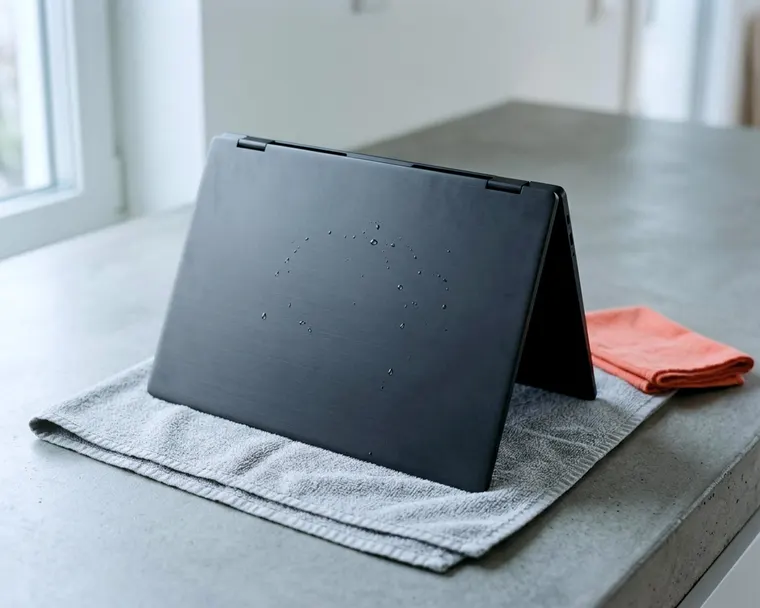
Water on a laptop screen requires cutting the power immediately to prevent an electrical short. You will need to blot away the visible moisture and let the device dry completely before turning it back on. Fast action gives the internal components the best chance of survival.
1. Shut it down and unplug the laptop immediately
Power is the biggest threat when moisture reaches computer electronics, so turn the machine off right away if a spill happens. One laptop maker says to turn the laptop off immediately and unplug it after a spill. Pull the power cable from the wall outlet first, then disconnect it from the side of the machine. Remove any connected accessories like mice, flash drives and external monitors.
If the screen is on, hold the power button down until the display goes completely black. Do not stop to save work or close programs. If your manual says the battery is removable, follow its steps to take it out.
2. Blot the outside without pressing on the panel
Water can seep in around the edges of the display housing. Grab a dry, clean cloth and gently blot the liquid you can see. Wiping can push moisture further in and smear it across the display. That same laptop maker suggests flipping it upside down in a tent shape and blotting, not wiping, visible liquid with a dry cloth.
Keep a light touch while you work. Pressing hard on the screen panel can force trapped water deeper between the display layers. The screen is made of several thin sheets of plastic, glass and light diffusers. If moisture gets behind those diffusers, you may see bright patches or a black spot on the laptop screen even after it dries.
Clean up the keyboard and the trackpad the same way. Always skip household sprays. The manufacturer advises never spraying liquid directly onto a screen or using glass cleaners that contain ammonia. Those products can damage the screen.
3. Drain and dry the machine the way your maker says
Laptop manufacturers disagree on the best physical position for a wet computer. You should check the manual for your exact model to see what the company recommends. The first maker suggests the tent shape so liquid drains away from the keyboard.
Another maker takes the opposite approach. Another laptop maker warns not to drain liquid by turning the computer over. That maker adds that if the keyboard has drainage holes on the bottom, liquid will leave through them on its own.
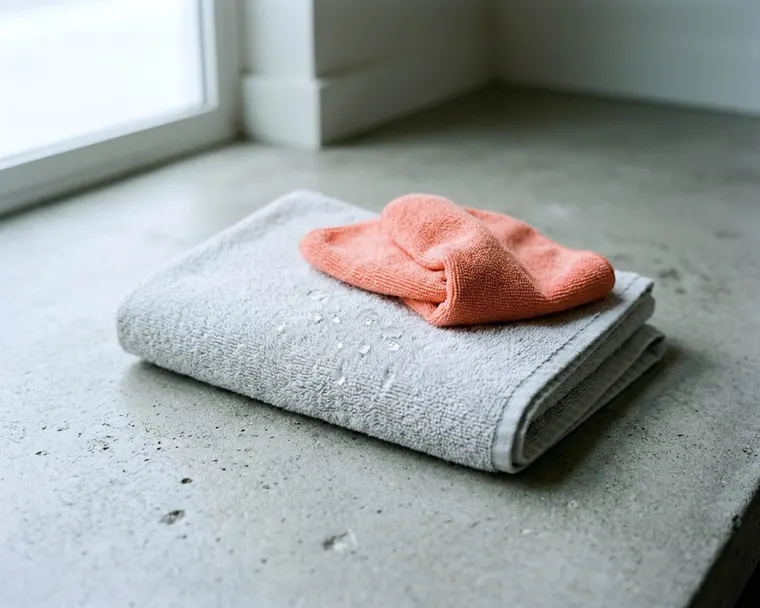
If you cannot find the manual on your phone, set the laptop on a flat dry towel in its normal open position. Leave it alone in a dry room with good air circulation. Avoid direct heat.
4. Leave rice and hair dryers out of the process
Putting a wet gadget in a bag of uncooked rice does not speed up the drying process. Rice is not advised, and it can leave dust or grains in the ports.
Hair dryers cause a different kind of damage. Hot air can damage parts and may push moisture deeper, so skip the hair dryer. You want the moisture to dry up right where it sits or drip out the way it came in.
If you want to help, keep air moving gently around the room and check your manual first.
5. Wait until the laptop is fully dry before powering on
Patience is your main defense against a short circuit. The first laptop maker advises letting the device dry for at least 24 to 48 hours before turning it on, and the second warns to wait until you are certain it is dry. Water can hide in the hinges and beneath the keyboard tray long after the exterior looks completely clean.
Giving the device at least 24 to 48 hours is the maker's advice. Rushing this step can make water damage permanent.
Leave the laptop sitting open on a desk for an entire weekend if you can. Do not press the power button just to check if it still works. Every time you send power through the motherboard, you risk damage if moisture is still inside.
6. Take it to a repair shop if the battery swells or the screen stays dark
The laptop needs professional attention if it refuses to boot after the drying period. Press the power button once, and if the fans spin but the display remains completely black, the liquid may have damaged the backlight or the display cable connections. A technician can tell you if you need a new screen or if the problem sits on the motherboard. You might also notice lines on the laptop screen that were not there before.
Watch the bottom casing and the keyboard tray carefully over the next few weeks. A battery can swell after a spill or for other reasons. A bulging chassis, a trackpad that refuses to click down or a keyboard that bows upward are all signs of a swelling battery.
Do not try to charge the computer if you spot these changes. Shut it down and take the machine to a local repair shop to have the battery replaced safely. Do not keep using a swollen battery.
What to do if the screen looks strange after drying
Your laptop might turn on normally after a couple of days but show strange marks behind the glass. Water leaves mineral deposits behind when it evaporates. If liquid gets trapped behind the screen, those spots can show as dark shadows.
These internal water spots may be permanent. If the dark patches make the computer hard to read, a repair shop can tell you whether the display can be cleaned or needs replacing. You can often save money by plugging the machine into an external desktop monitor and using it at home.
Sometimes the screen works well but the keyboard starts typing multiple letters at once. Moisture can make keys stick or repeat. A technician may be able to repair or replace the keyboard without replacing the screen or the motherboard.
How to clean water marks off the outside glass
Once the laptop survives a spill, you might find dried mineral spots left behind on the front of the display. Cleaning these exterior spots requires the right materials to avoid scratching the surface. Use a clean microfiber cloth, damp at most, and never spray liquid directly onto the screen.
Wipe the dried spots gently with the damp corner of the cloth. Follow up immediately with the dry side to remove any leftover moisture. Never squeeze the cloth over the keyboard. A tiny drop of water rolling down the glass can slip right back under the bezel.
If you need a drink nearby, use a closed travel mug or a bottle with a tight lid.