- Tech Savvy Mag
- Laptop Picks
- How to choose a budget laptop that still feels quick
How to choose a budget laptop that still feels quick
Discover how to choose budget laptops that feel quick by picking the right storage drive and screen while skipping expensive features you do not need.
Explained by Ansel Bledsoe
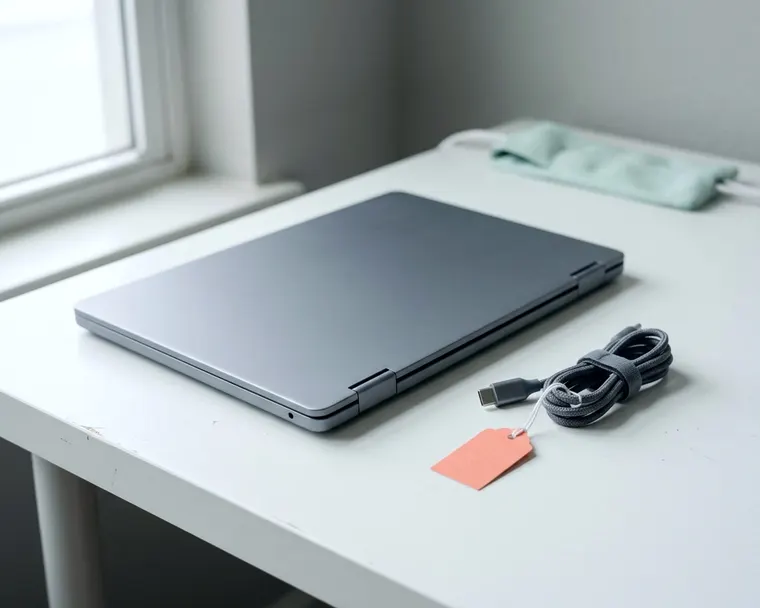
To choose a budget laptop that still feels quick, you must pick components that handle everyday tasks without stalling. You will need to trade luxury features for a responsive storage drive and a comfortable screen.
Match the machine to your daily routine
Budget laptops work well when you match the hardware to your actual tasks. A student typing essays needs a different computer than someone managing massive photo libraries. Most affordable computers handle web browsing and document editing easily, but they run into trouble when you force them to process heavy video files.
You should write down exactly what you expect the computer to do every day. A machine built for basic office work feels incredibly fast if you only use it for those specific chores. The exact same machine will freeze and stutter if you try to run heavy graphic design software.
You have to be honest about your daily habits.
If you keep dozens of browser tabs open while streaming music, you ask a lot of the computer. Figuring out how much RAM you need for your routine matters. Buy enough memory to cover your habits.
Why a solid state drive matters more than a fast processor
The storage drive dictates how fast your computer feels during normal use. Many affordable computers come with basic processors that are plenty fast for daily chores. The part that often slows everything down is a cheap storage drive.
You must insist on a true solid state drive.
Older mechanical hard drives use physical spinning disks that take time to find your files. Some cheap laptops use a slow type of flash storage attached directly to the main board. Both of these cheaper options make opening applications feel sluggish.
A proper solid state drive helps the computer start up and open your web browser quickly. It also saves large files without a noticeable delay.
When you shop, look closely at the storage specifications. Retailers often use confusing terms for the slower flash storage to make it sound premium. You want to see the words solid state drive clearly listed.
If the description mentions a mechanical drive or uses vague terms for the flash memory, move on to another option.
A fast drive also helps when your computer runs out of memory. When that happens, the computer uses the storage drive as a temporary workspace. If your storage drive is fast, you will barely notice this happening, but a slow drive causes the entire computer to freeze until it catches up.
Keyboard comfort and trackpad reliability
A fast computer is frustrating to use if the keyboard and trackpad are poorly made. Manufacturers often use cheap plastic parts for the keys on budget models. You interact with these two parts constantly, so they shape how the computer feels.
Test the keyboard by typing a few sentences in a store. The keys should travel down a fair distance when you press them. If the keys feel stiff or barely move at all, your fingers will get tired quickly.
Check if the keyboard deck bends when you press down on the middle keys. A sturdy keyboard frame makes typing much more comfortable.
The trackpad needs just as much attention. Cheaper trackpads often feel rough and fail to register light taps. Try dragging a window across the screen to see if the cursor jumps or lags.
The surface should feel smooth, and clicking should not require heavy pressure. A bad trackpad forces you to carry a separate mouse everywhere you go.
Screen resolution and brightness to check in person
A cheap screen can ruin an otherwise excellent computer. Manufacturers routinely cut costs by installing screens that look washed out or dim. A poor display makes your eyes tired and leaves text hard to read.
You should try to look at the screen in a physical store before you buy. Many budget laptops use low resolution panels that make text look fuzzy and jagged. You want a display with a high definition resolution because crisp letters are much easier to read.
Turn the brightness all the way up while you are in the store. Store lighting is bright, so a screen that looks dim there may struggle near a bright window at home.
You should also check the finish on the screen. Glossy screens reflect lights and windows, while a matte finish reduces distracting glare.
Pay attention to the viewing angles by tilting the screen back and forth. The cheapest screens can wash out, shift color or look dark when viewed from an angle. You want a display that stays clear and colorful even if you move around.
If you later notice an odd color tint on a good screen, understanding why your laptop screen looks yellow can point to a simple setting. A physically poor screen cannot be fixed.
Battery life and charger details
Affordable computers often compromise on battery capacity to keep the weight and price down. A fast computer loses its appeal if it dies halfway through your afternoon. The physical size of the laptop often limits the size of the battery inside.
Larger computers have more room for bigger batteries, but they also have larger screens that consume more power.
Look carefully at the type of charging port the laptop uses. Some budget laptops use a standard USB connection for power, which can be an advantage over older barrel style power cords. A universal charging port means you can often use the same cord for your phone and your computer.
A standard port also makes a replacement charger easier to find, but check that it matches what the laptop needs.
Be skeptical of manufacturer claims about battery life. Their tests may use light workloads, so real world battery life can be shorter.
If independent reviews show the battery cannot last through an entire morning of normal work, you will be tethered to a wall outlet.
Refurbished and open box options
You do not have to buy a brand new computer to get a reliable machine. Buying a refurbished or open box laptop can let you get better parts for a budget price. Some offices lease business laptops and return them after a few years.
Business models often have sturdy hinges and good keyboards, but check the specs of the exact unit.
Open box deals happen when a customer returns a computer to a retail store simply because they changed their mind. The store cannot sell it as new, so they reduce the price to clear the inventory. These computers may be nearly new, but ask the store about the warranty and return policy before you buy.
Refurbished computers are used machines that a company has tested, cleaned and repaired. You should only buy refurbished computers from a reputable program that offers a solid return policy. A good refurbisher tests the battery and screen, so ask what was checked or replaced.
This path often gets you a true solid state drive and a great keyboard for the same money you would spend on a poorly made new laptop.
Specifications to skip when money is tight
Keeping your budget low means knowing exactly what to avoid. Every extra feature you add takes money away from the core components that make the computer fast. A touchscreen is a good example because it adds cost and can drain the battery faster and make the display more reflective.
If you do not plan to draw on the screen, skip the touch feature entirely.
Computers with hinges that fold all the way back into a tablet shape also cost more to build. These complex hinges can be prone to breaking on cheaper models. A traditional laptop hinge is often sturdier and keeps your money focused on internal speed.
Metal bodies look great but often cost more, while good plastic can be durable and lightweight at a lower price. A plastic computer with excellent internal parts is a much better buy than a metal computer with a slow storage drive.
You should also skip extra security features like fingerprint readers or facial recognition cameras. Typing a password takes a few seconds and costs nothing.
Dedicated graphics chips are another expensive trap. If you just want to browse the web and type emails, the standard graphics hardware built into the main processor is plenty.
Paying for extra graphics power only makes sense if you are editing high resolution video or playing heavy games. If that is your plan, review the gaming laptop specs you actually need instead of shopping in the budget aisle.