- Tech Savvy Mag
- Laptop Picks
- How much RAM does a laptop need for what you do
How much RAM does a laptop need for what you do
Learn exactly how much laptop ram you need for daily browsing, heavy photo editing or gaming to choose the right computer without overspending on memory.
Explained by Ansel Bledsoe
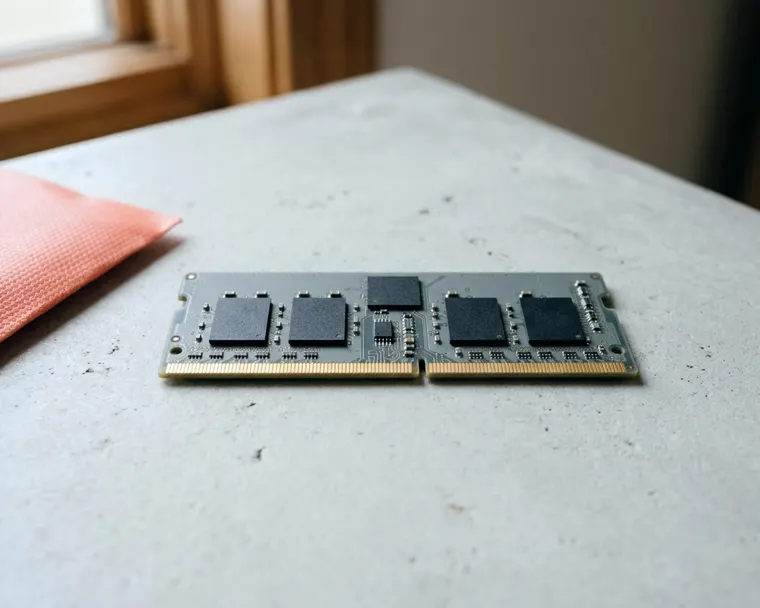
Many users get by with 8 GB or 16 GB of laptop RAM. Get 8 GB for daily web browsing and simple office work, and step up to 16 GB if you edit photos, play complex games or keep dozens of browser tabs open at once.
What memory does and how it differs from storage
Memory provides a temporary workspace for your computer. Your computer loads your operating system, open applications and active files into RAM so the processor can reach them instantly. It acts like the top of a physical desk. A larger desk lets you spread out multiple documents at once without a problem.
A small desk forces you to shuffle papers back into drawers to make room for new ones. Storage works like the filing cabinet sitting next to that desk. It holds all your files and applications permanently, even when the power goes out.
When you close a document, the computer clears it from the fast memory and saves it to the permanent storage drive. People often confuse the two because both use gigabytes as a measurement. A computer running out of memory slows down.
It has to constantly swap data between the fast desk and the slow filing cabinet. Your computer creates a special file on your storage drive to act as emergency memory. This emergency space operates much slower than real memory.
When you switch between programs, the computer pulls data from this slow file back into the fast RAM. You feel this process as a severe lag. The mouse pointer might stutter, and windows take a long time to draw on the screen.
The minimum memory an operating system needs
Every operating system claims a baseline amount of memory just to turn on and run its background services. Microsoft states clearly that Windows 11 requires at least 4 GB of RAM. That bare minimum amount leaves very little room for your actual applications.
A computer with 4 GB may spend a lot of time shuffling data back and forth to the storage drive just to keep the screen running. The software requires a few other baseline hardware specifications to operate.
Component | Minimum requirement |
|---|---|
Memory | 4 GB |
Storage device | 64 GB or larger |
Processor | 1 GHz or faster with 2 or more cores |
Buying a computer with only the bare minimum memory can mean a slow experience. You need enough extra capacity above that baseline to run your actual software smoothly. Knowing how to choose a budget laptop means looking past those absolute minimums. You want a machine built to handle a real daily workload.
Finding the right amount for browsing, email and video
An 8 GB laptop handles everyday tasks without trouble. This amount provides plenty of room to check email, watch high definition video and write documents. You can easily keep a few browser tabs open while streaming music in the background. The processor handles these tasks easily when it has enough fast workspace available.
Many basic computers include 8 GB of memory. This makes sense for students writing essays or families who share a computer for light homework and shopping. The machine will feel responsive and quick for these simple jobs. You will not notice delays when you open folders or launch a web browser.
Streaming a movie does not require massive amounts of memory because the computer discards the video data as soon as it plays. A basic 8 GB machine can easily stream a long movie while fetching new email in the background. The real challenge comes from tasks that force the computer to hold data in place for a long time.
Issues only arise if you attempt to load heavy professional software or open dozens of web pages simultaneously. Each open tab claims a small chunk of your memory. A single shopping page takes up very little space, but a browser window loaded with heavy video ads and complex web applications adds up fast. Sticking to 8 GB means you might need to close a few tabs when the computer starts to hesitate.
Choosing memory for photo editing, gaming and big spreadsheets
Demanding software needs a much larger workspace to operate. A popular consumer photo editor lists 8 GB of RAM as its minimum and 16 GB as recommended on Windows and macOS. Video editing software and large games often list similar or higher amounts, so check their requirements. The software needs that space to hold complex images and textures ready for the processor.
Buying a machine with 16 GB prevents frustrating delays when working with large files. A big spreadsheet with many rows is less likely to slow or freeze your screen. You can also leave multiple heavy applications running together. You might keep a photo editor, a web browser and a chat program open without the system lagging.
Deciding if a gaming laptop is worth it often comes down to memory. Many large games list 16 GB as a recommended amount, so check the requirements for the games you play. Games use memory to keep track of where everything is in the virtual world.
If a game runs out of memory, it has to load textures from the storage drive while you move around. This causes the game to stutter or pause entirely. An upgrade to 16 GB keeps the action fluid because the computer holds all the necessary files on the fast desk.
Some professional users even step up to 32 GB. That much memory often costs more, and many people never use it. Buy 32 GB only if your daily job involves rendering video or running complex models.
Why soldered memory changes how you shop
Laptop builders often attach the memory directly to the main circuit board to make computers thinner and lighter. You cannot upgrade this memory later because there are no physical slots to accept new chips. One laptop maker's spec sheet lists memory soldered to the system board with no slots, so 16 GB and 32 GB models are not upgradable.
Soldering memory directly to the board eliminates the plastic slots and metal pins that normally hold memory sticks. This saves physical space inside the laptop shell. Buyers get a machine that is easier to carry, but they give up all control over future upgrades.
You must buy all the memory you will need for the life of the machine on day one. If you think you might start editing video a couple of years from now, pay for 16 GB today. Buying an 8 GB model with soldered memory means you will have to buy a whole new computer if your needs outgrow it.
Always check the specifications carefully before you buy. Manufacturers usually state clearly if the memory is soldered or if the machine has open slots. If you see the word soldered, treat the memory capacity as permanent. An open slot means you can save money now and buy more memory if your computer starts to slow down later.
How to check how much memory you use
You can check your existing computer to see exactly how much memory your daily routine consumes. Doing this during a typical work session provides the best estimate for your next purchase. Leave your usual applications and web pages open while you check.
Windows users can find live memory usage in the Task Manager.
- Press the Control, Shift and Escape keys together on your keyboard.
- Click the Performance tab on the left side of the window.
- Click the Memory section to see your total capacity and the amount in use.
Mac users track the same information through the Activity Monitor.
- Open the Applications folder and double click the Utilities folder.
- Open the Activity Monitor application.
- Click the Memory tab at the top of the screen to view the pressure graph and total usage.
The memory screen shows a graph of your usage over time. A flat line near the middle of the graph indicates your computer has plenty of space for what you are doing. A line that spikes and stays near the absolute top means the memory is completely full.
You might also notice the computer running the cooling fans constantly when the memory graph stays high. That can happen when the processor works harder to cope with little free memory. If your existing computer constantly uses almost all of its available memory, your next machine needs a larger capacity.
Moving to the next size up should give your software more room to run.