- Tech Savvy Mag
- Laptop Picks
- What to look for in a laptop you will work from home on
What to look for in a laptop you will work from home on
Finding a laptop for a work from home setup means checking screen size, keyboard comfort, webcams, and ports so you can work a full shift without straining.
Explained by Ansel Bledsoe
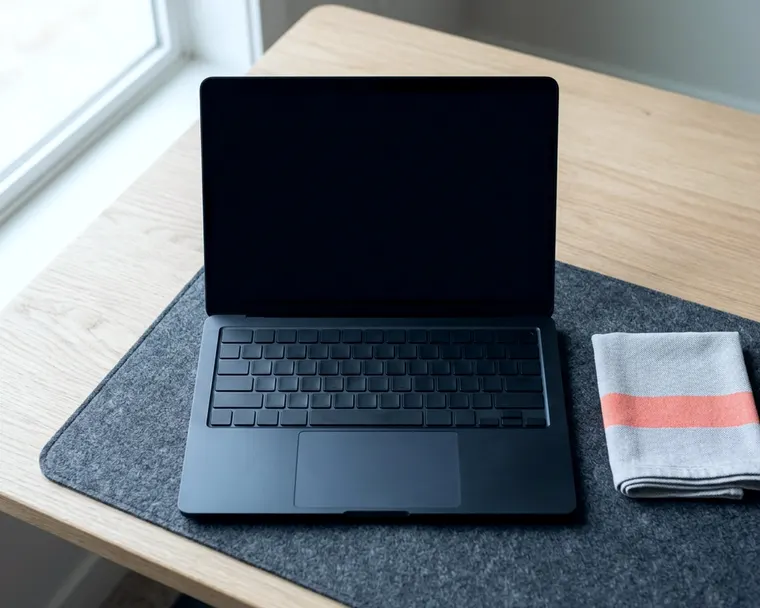
A laptop you will work from home on needs a comfortable keyboard and a clear webcam. You also want a screen large enough to read documents without squinting. The right choice keeps your neck straight and your hands relaxed through a long shift.
Match screen size to how long you sit at it
If you stare at spreadsheets all day, choose the largest display available. A wide screen lets you place documents side by side. You can read small text easily and keep chat apps open in the corner.
Compact computers are usually lighter. This helps if you move from the kitchen table to the couch. They fit easily into a bag for occasional commutes. A smaller footprint also leaves more room on your desk for notebooks.
The downside to a small device is your daily posture. It sits very low on a desk. This poor angle forces you to bend your neck forward while you read. Over a full afternoon, that position can add strain and shoulder fatigue.
Check the maximum brightness before you buy. A dim display makes you squint when morning sunlight streams through your window. A brighter screen can help with glare. It can also keep colors looking sharp in a bright room.
Check the glass coating. A glossy finish can look good in a dark room, but under bright overhead lights it may act like a mirror. A matte display usually reduces those reflections. This helps your eyes stay relaxed during long reading sessions.
Check for screen defects immediately after you open the box. If you notice strange marks, find out whether they are software glitches or physical damage. Learn what causes a black spot. That tells you whether to send it back.
Find a keyboard and trackpad that feel right
Your daily typing comfort decides how your hands feel at the end of a long shift. You want keys that press down far enough to feel solid under your fingers. Shallow keys feel like tapping on a solid block of wood. They can tire your fingers faster.
Check the physical spacing between the individual keys. Cramped layouts force your wrists into unnatural angles while you type. A wider chassis gives your hands room to rest naturally. This can help prevent aches when drafting long reports.
Look at the layout of the arrow keys before you buy. Some manufacturers crush the up and down arrows into a single space. Full-size arrow keys can make navigating large documents easier. They keep you from constantly reaching for your mouse.
Look at the materials around the keyboard. Hard plastic edges can dig into your forearms while you rest your hands. Smooth metal or soft textured finishes may keep your wrists more comfortable. They provide better support during long typing sessions.
Test the trackpad exactly as you test the keys. A wide trackpad lets you drag a cursor all the way across the display without lifting your finger. A glass surface usually glides smoothly. Cheap plastic can create friction.
Press down firmly on the trackpad to feel the click mechanism. A stiff click requires extra effort and tires out your hand over a few hours. The best trackpads register a gentle tap. They ignore your palm when you accidentally brush against them while typing.
Clear webcams and microphones make meetings easier
Coworkers rely on your camera and microphone to understand you during virtual meetings. A poor camera turns your face into a blurry shadow. This makes it hard for people to read your expressions. Choose a computer with a sharp lens built directly into the top edge.
Avoid models with the camera placed at the bottom of the display. That angle can look up toward your nose and make your hands look large while you type. A lens centered above the display mimics natural eye contact. This keeps you looking professional.
Pay attention to how the camera handles poor lighting. Your home office might look bright to your eyes but dark to a cheap sensor. A good camera automatically adjusts the exposure. It may brighten your face even when a window sits directly behind you.
Your voice needs to sound crisp while blocking everyday household noises. Multiple built-in microphones can help the computer filter out background noise such as barking dogs or street traffic. Software can only fix so much background noise. You have to start with good hardware.
Test the microphone by recording a short voice clip before your first meeting. If you sound muffled, you will have to repeat yourself constantly. Good microphones pick up your voice clearly. They work well even if you lean back in your chair to stretch.
A physical privacy shutter is handy at home. A simple plastic slider physically covers the lens. Nobody can see you when the meeting ends. This tiny piece of plastic saves you from constantly checking if your camera is turned off.
Buy enough battery for the times you leave the desk
Working from home means you are rarely far from a standard wall outlet. You can leave the computer plugged in on your desk for most of the week. Massive battery cells matter much less here than they do for frequent travelers.
Long battery life still helps when you want a temporary change of scenery. Moving to the living room couch for an afternoon requires independent power. A solid battery lets you finish a project away from your desk. You do not have to trail a cord across the floor.
Video calls drain power faster than reading documents or replying to emails. If you spend your mornings in virtual meetings, the computer works harder. You want enough capacity to survive consecutive calls before reaching for the charger.
If you decide to step down in price, expect a smaller battery. When you figure out how to choose a budget laptop, battery size can be an early compromise. Manufacturers may shrink the battery to lower the final cost.
Over time, leaving a computer plugged in constantly can wear down the internal battery. Look for software settings that limit the maximum charge level. Stopping the charge early may extend the lifespan of the cell. This may mean you do not have to replace the battery as soon.
Fast charging capabilities get you back to work quickly. Some computers charge quickly during a short lunch break. This feature saves your afternoon if you forget to plug the cord in overnight.
Pick ports that connect your desk equipment
Every extra cord you plug in needs a dedicated spot on your computer. External mice and standard mechanical keyboards usually require traditional rectangular ports. If the computer only has tiny oval connections, you will need adapter cables. This is the only way to make your old gear work.
Adapters clutter your workspace and cost extra money to replace. A dedicated docking station solves the problem but adds an ugly block to your desk. Buying a computer with the right ports built into the frame keeps your setup clean.
Look for a dedicated video port if you plan to connect a larger screen. Plugging a monitor straight into the side is much easier than messing with converter cables. A direct connection usually provides a more stable picture without flickering.
Consider getting a computer with a memory card slot if you work with photography. Photographers often dislike digging for a special card reader every time they transfer images. A built-in slot saves time. It keeps your desk clear of unnecessary plastic readers.
A traditional headphone jack remains incredibly useful for wired audio gear. Bluetooth headsets can run out of battery during important calls. A wired pair does not need charging. You want the option to plug in right away when a surprise meeting starts.
Check which side the primary charging port sits on. If your wall outlet is on the right and the port is on the left, the cord drapes awkwardly. The cable gets in the way of your keyboard. Computers that charge from either side give you more flexibility.
Second monitors change which computer you should buy
Adding an external monitor to your home office changes your buying priorities completely. A large monitor handles your complicated spreadsheets and main work tasks. The computer itself simply becomes a secondary display. You can use it just for chat apps or your email inbox.
Because you rely less on the built-in display, you can comfortably buy a smaller computer. A compact model takes up far less desk space. It is much easier to carry around the house. You save money by not paying for a massive screen you rarely look at.
Using a separate monitor almost always means you want a separate standalone keyboard. Once you place those dedicated tools on your desk, the laptop gets pushed aside. The computer's own keys and trackpad become much less important to your overall comfort.
The computer still needs enough internal power to run multiple displays. Pushing complicated graphics to a large external monitor requires a capable processor. You also have to decide how much memory the machine requires to keep those extra applications running smoothly. A weak machine will stutter and lag.
Keep the laptop open on a raised stand to use its webcam for your daily meetings. Raising the computer brings the lens up to your natural eye level. This setup works best with sturdy hinges. They must hold the display steady while you type on the desk below.
Make sure your desk is sturdy enough to hold a large monitor and a laptop stand. A wobbly desk makes the computer screen shake every time you strike a key. Heavy monitors also need a stable base so they do not tip backward. Test your desk setup before you buy the extra equipment.