- Tech Savvy Mag
- Accounts and Security
- Should you use the password manager built into your phone
Should you use the password manager built into your phone
Find out if your phone's built in account password manager is enough to keep you safe, how to set it up and when a standalone app makes more sense.
Explained by Beatrix Aldridge
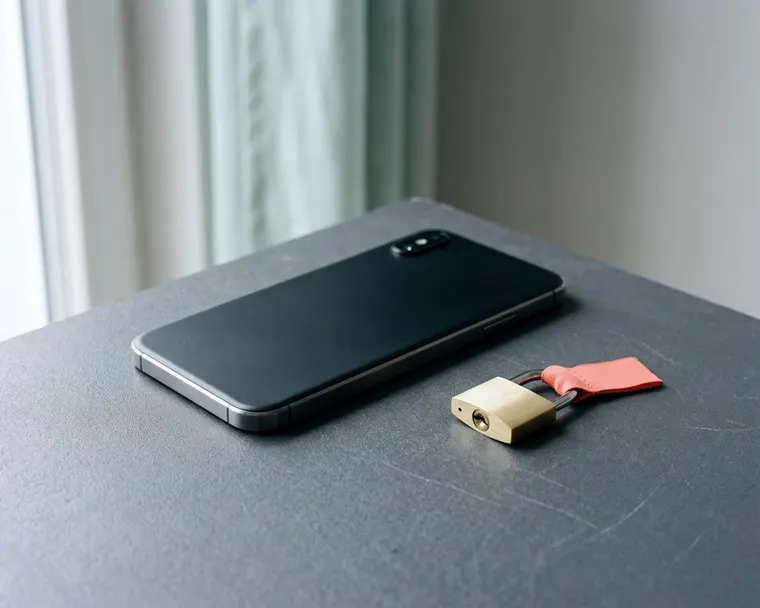
The password manager built into your phone is often enough for many people. It stores your login details and types them for you. This helps you avoid reusing the same weak phrase everywhere. You only need a separate app if you want to share passwords with family members or use devices from different makers.
What an account password manager stores
An account password manager acts like a digital vault tied directly to your phone's operating system. It remembers your username and password for every website and app you use. When you tap a login box, the phone recognizes the site and offers to fill in the blanks. It usually fills a login only on the site it was saved for, which can help you spot fake phishing pages, though you should still check the address yourself.
You approve the request with your face, fingerprint or screen PIN, and the manager drops the correct details into the fields. This means you no longer need to type or remember dozens of separate logins. You can often log into your email and bank account with a single glance.
National Institute of Standards and Technology guidance says online services shall allow password managers and autofill. Not every site follows that guidance, so you may still type a password now and then.
Some managers also store credit card numbers and secure notes. Some also hold wifi codes, so check what yours supports. The core job remains keeping your online logins safe and ready to use.
How to turn it on in your settings
Many phones offer a built in password manager, and it may already be on. You can check this by opening your main settings menu. Look for a section labeled Passwords, Accounts or Autofill and tap it to see which service is handling your logins. You might see a dedicated passwords menu right near the top of the list.
If it is turned off, turn on the toggle switch to enable autofill. Your phone then offers to save new passwords as you type them. It will also prompt you to use saved passwords when you return to a site. You just tap the suggested login above your keyboard.
Your web browser might also ask to save passwords. It is usually best to pick either the phone system or the browser system and stick to it. Using both at once can make them compete and save different versions of your passwords.
Choose the system you use most often. If you do most of your web browsing on your phone, the phone's native manager is the best choice. It often works inside apps as well as on websites, while browser managers may only work on web pages. Relying on the phone system gives you a single place to look when you need to update a password.
Keeping passwords synced across devices
A password manager is most useful when it follows you everywhere. If you save a password on your phone, you want it ready on your laptop an hour later. Built-in managers handle this through your main operating system account. They sync the data through the internet automatically.
You need to sign in with the same account on all your devices. Open the cloud or sync settings on your phone and confirm that passwords or keychain syncing is turned on. Then do the exact same thing on your tablet and laptop. Your devices will talk to each other in the background to keep your vault updated.
This works well if you buy all your devices from the same company. The phone talks to the laptop easily. The syncing happens quietly and requires no extra setup on your part. You add a password in one room and it should appear on the other screen soon after.
If you use a phone from one maker and a laptop from another, the built-in tools may not sync with each other. You may need a browser extension on the laptop to bridge the gap, and some setups will not sync at all. This is the biggest drawback to relying entirely on the built-in tools.
The security behind your saved logins
Leaving all your passwords in one place sounds risky to many people. The protection comes from how hard it is for anyone else to open that vault. Your manager usually requires a local authentication before it reveals a password. This means it needs your face, your fingerprint or your lock screen PIN.
Even if someone steals your phone while you are using it, they should need to pass that check again to view your passwords. You can add another layer by learning how two factor authentication works. This requires a second proof of identity to access your main cloud account from a new device. It helps stop a thief from downloading your vault to their own hardware.
Check your phone maker's security page to see how your synced passwords are encrypted and who holds the keys.
A built in manager is generally a better choice than reusing passwords or keeping them in a plain text file, though no tool removes all risk.
Creating stronger passwords with your phone
Passwords people make up are often easy to guess. Many use pet names, birthdays and simple keyboard patterns, and some reuse the same password on multiple sites. If a hacker breaches one poorly secured site, they may try that same combination on your bank account.
Your built-in manager fixes this by generating random strings of letters, numbers and symbols. When you sign up for a new service, tap the password box. The phone can suggest a complex password and offer to save it. You never even have to look at it or memorize it, because the phone remembers the gibberish for you.
Length counts for a lot in a password. National Institute of Standards and Technology guidance sets a 15 character minimum for passwords used as the only login factor. Their guidance also says services should permit passwords of at least 64 characters. Let your manager make them long, within what each website allows.
The same agency says services shall not force people to change passwords on a schedule, only when there is evidence of compromise. You do not need to change a strong, unique password on a schedule. If a site is breached, you might have to take steps after an account is hacked. Changing that one unique password is quick, and it keeps the damage to one account.
Choosing a separate management password app
The built-in tools fall short for a few specific jobs. A standalone management password app can work across many brands of phone, tablet and computer. This is the main reason people download a separate app. You can switch phone brands tomorrow and usually take your passwords with you without retyping anything.
Standalone apps can also make sharing simpler. You might need to share a streaming service login or a utility bill account with your spouse. Many dedicated apps let you create a shared vault where an updated password reaches everyone who shares it.
Built-in tools may make sharing a single password harder, and sending one over a text message is not secure. Many dedicated apps let you revoke access if you stop sharing an account, so check the features of any app you consider.
Third-party apps often include extra features built around security. They might scan the internet for your email address to see if your data leaked in a breach. They can also store scanned documents, software licenses and medical notes more neatly than a phone's basic settings menu. Some even include virtual private networks for safer web browsing.
Password recovery if your device goes missing
Losing your phone feels worse when it holds the keys to your digital life. If syncing was on, your passwords are not gone. Because they sync to your cloud account in the background, password recovery is usually straightforward. You do not lose your accounts just because you lost the physical hardware, as long as you can sign in to your main account.
You just need to sign in to a new device. When you buy a replacement phone, you enter your main account email and your master password. The device might ask for a two factor authentication code sent to a backup number or a trusted family member. This proves you are the rightful owner of the account.
Once you are signed in, your saved passwords should download to the new phone. You can open your apps and log in just like before. This makes your main account password the most important one. It is the one password you actually have to memorize to get your life back online.
Make your main password a long phrase you will remember. If you worry about forgetting it, write it down and keep it somewhere secure, such as a safe. If you plan to erase an old device before selling it, read up on what to do before resetting. You want to make sure your passwords are fully synced to the cloud first before you wipe the storage.