- Tech Savvy Mag
- Wifi and Routers
- Modem vs router and why most homes need both
Modem vs router and why most homes need both
A modem vs router comparison explains how each device brings the internet into your home and why most setups require both to connect your devices.
Explained by Beatrix Aldridge
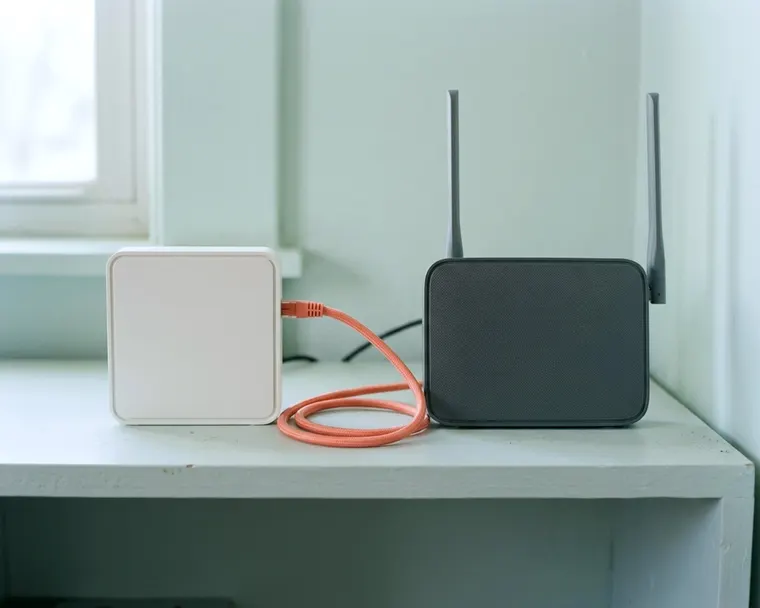
A modem connects your home to your internet provider. A router shares that single connection with your phones, computers and smart TVs. Understanding a modem vs router setup helps you fix connection drops and avoid paying for equipment you do not need.
What the modem does on your internet line
The modem is the starting point for internet access in your house. The modem plugs into a wall jack or cable outlet. This box acts as a bridge between your home and your internet provider's network.
The modem converts your provider's signal into digital data your devices can use, and converts your data back again.
Different internet services require different modems. Cable modems use a coaxial connection, and DSL modems use a phone line. Ask your provider which equipment suits your service, including fiber. You must have a modem that matches your service type.
A modem alone is not enough to share a connection, since a router is required to share it with multiple devices.
Most home setups pair the modem with a router.
What the router does inside your home
The router plugs into the back of your modem. The router's job is to share that connection with all your devices over wifi or cables. It creates a local network inside your house.
When you have a modem and router, the modem talks to the provider. The router talks to your devices. It acts as a digital traffic cop. The router assigns a local private address to every phone, laptop and smart speaker in your home.
Routers contain internal antennas that broadcast the wifi signal. Walls and other obstacles can weaken this signal. If your devices struggle to stay connected in distant rooms, figuring out why your wifi is slow may point to the router's location. Moving the box to a higher shelf or a central room can help.
Most routers also feature a row of network ports on the back. You can run an ethernet cable from the router to a desktop computer. A wired connection avoids wireless interference and is often more stable. Your router handles the data traffic for both the wired and wireless devices at the same time.
Many routers also let you create a separate guest network. This feature gives visitors a password to get online without sharing your main network password. Check your router's manual for the setting.
Tell which box is which by its lights and ports
Many homes have a tangle of black boxes and wires sitting on a desk. You can tell your modem and router apart by checking the connections on the back.
On a cable connection, look for the thick, round coaxial cable coming from the wall. The box connected to that wall cable is your modem. It will also have a power cord and one standard ethernet cable plugged into it. This ethernet cable runs from the modem straight to the router.
Your router receives that single ethernet cable coming in from the modem. It usually plugs into a port labeled WAN or Internet. This port often has a different color to stand out. Next to it, the router has several ethernet ports labeled LAN.
You use these LAN ports to connect local devices with cables. The router usually has no coaxial connection. If you trace the wires, the modem touches the wall cable, and the router touches the local devices.
The front lights also give the devices away. Many modems show lights labeled upstream, downstream and internet. The upstream and downstream lights often look like arrows pointing up and down. Check your modem's manual for what each light means.
A router has a different set of lights. Many routers have indicators for the wifi bands. The router might also display numbered lights that correspond to the LAN ports on the back.
You might also notice a tiny reset button recessed into the plastic on both devices. Pushing a paperclip into this hole can erase your custom settings. Only use this reset button if your provider's support team or the manual tells you to.
When a combo unit makes sense
You do not always have two separate boxes. An all-in-one modem router combo is often supplied by providers, but separate units typically deliver better performance. A combo unit places the modem hardware and the router hardware inside a single plastic shell.
A combo device needs less space on your shelf. It requires only one wall outlet for power. You do not have to worry about wiring a modem and a router together, because the connection happens internally. This makes the setup process very easy for a small apartment.
However, separate devices give you more flexibility. When you use separate boxes, you can replace an old router without tossing the modem out. When deciding on wifi 6 or wifi 7 for a router upgrade, you only pay for the router itself.
Linksys says separate units usually give more speed, wider coverage and more customization, which matters most in larger homes. If your home has many wireless products connecting at once, smart appliances pulling constant data may put more load on a basic combo unit.
Separate units each do one job, which is why they usually perform better.
Renting from your provider or buying your own
Internet companies usually offer to supply the equipment when you start your service. You might rent a modem from your provider, but buying your own can cost less over time. Providers often add a monthly equipment charge to your internet bill for a rented device.
Buying your own modem avoids that rental fee. Check with your provider that a modem works with its network before you purchase one.
You can usually buy your own router and plug it into your modem. Buying your own router lets you pick the exact features you need. A large house might need a mesh router system with multiple units spread across different floors.
When you buy your own equipment, you are usually responsible for fixing or replacing it, so check the warranty and what support your provider offers.
Returning a rented modem takes some extra effort. Ask your provider how to return it, and keep proof of the return in case the rental charge continues.
Restart them in the right order
When your internet goes down, restarting the equipment often gets it back online. The order can matter. If the router starts before the modem finishes connecting, pages may not load even though your phone shows wifi.
To restart a separate modem and router:
- Unplug the power cord from the back of the modem.
- Unplug the power cord from the back of the router.
- Check that all the lights on both boxes are completely off.
- Wait about a minute, or follow your device's manual.
- Plug the modem back into power and wait for the internet light to turn solid.
- Plug the router back into power and wait for the wifi lights to turn on.
- Connect a phone or computer to the wifi and test a web page.
Waiting for the modem takes patience. The modem goes through a strict sequence of signal checks with the internet provider. It can take a few minutes for the upstream and downstream arrows to stop blinking. You must wait for the modem to finish its work before you plug the router in.
If you have a modem router combo unit, the restart process takes fewer steps. You just pull the single power cord from the back of the unit. Wait about a minute, then plug the cord back in.
Unplugging the devices lets them start fresh. If a restart does not bring your connection back, contact your provider to ask about an outage or an equipment fault.