- Tech Savvy Mag
- Wifi and Routers
- 9 reasons your wifi is slow and how to fix each one
9 reasons your wifi is slow and how to fix each one
Find out what is dragging down your wifi speed and learn how to fix the problem so you can get back to watching movies or browsing without buffering.
Explained by Beatrix Aldridge
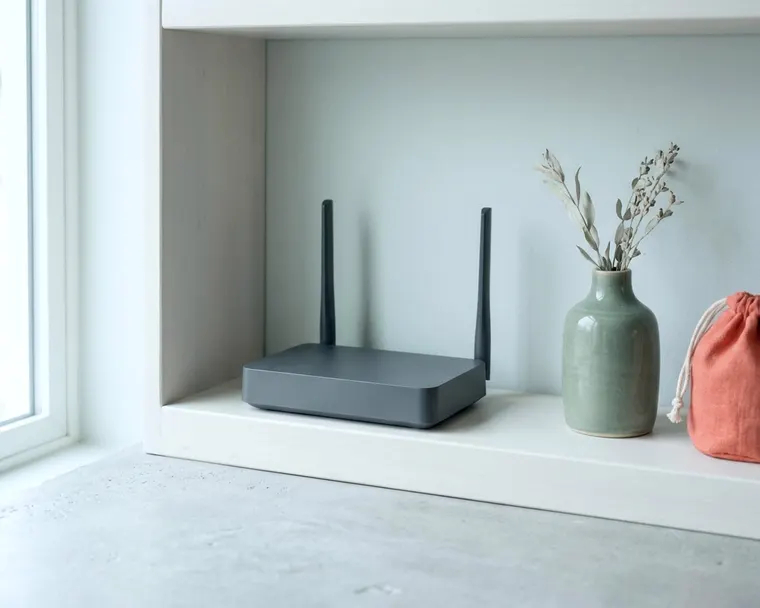
A slow connection usually comes down to the router location, the frequency band you are on, or devices hoarding the data. Working through a few simple checks helps narrow down where the signal drops. Many fixes cost nothing and can bring your wifi speed back up.
1. Test your speed near the router and in the problem room
Run a speed test on your phone or laptop standing right next to your router. Write that number down. Walk into the room where the signal drops and run the test again. This tells you if the router is putting out a weak signal altogether or just struggling to reach that specific spot.
A big drop in numbers means the signal is dying on the way to your device, while a low number in both spots means the router is not getting a fast connection to begin with. Testing two locations separates a range problem from a baseline internet problem. Use a plain web browser for the test and make sure no big downloads are running in the background. A reliable speed test site usually needs just one click to start measuring.
2. Check your test results against your internet plan
Log into your internet provider account to see what speed you actually pay for. If your plan tops out at a low speed, your wifi speed will never go higher than that limit. Compare your plan speed to what a major streaming service requires for video playback.
Video quality | Recommended speed |
|---|---|
HD 720p | 3 Mbps or higher |
Full HD 1080p | 5 Mbps or higher |
4K Ultra HD | 15 Mbps or higher |
When your paid plan sits near those minimums, a few devices streaming at once can strain the connection. A faster plan may be the fix.
3. Lift the router out of cabinets and off the floor
Place your router on a high shelf in the middle of your home. Wifi signals struggle to pass through solid objects such as thick walls and metal appliances. A router stuffed in a media console or hidden behind a television can send much of its signal into those solid materials.
Keeping the device out in the open gives the signal a clear path to your rooms. A good spot is waist high or higher, with no thick books or other electronics right next to it. Avoid putting the router in a basement or a far corner of the house. Central placement pushes the signal out in a circle, covering more square footage.
Moving the box away from a brick wall can improve the signal in the next room. Avoid setting the router right next to a window, since some of the signal goes outside. An open shelf in a central hallway often works well in a standard home.
4. Change between the 2.4 GHz and 5 GHz frequency bands
Connect your phone or computer to a different frequency on your wifi network. Many routers send out two separate signals. A major router maker notes that the 5 GHz band is faster with less coverage, while the 2.4 GHz band gives the most coverage but slower speeds.
If you are standing far from the router, choose the 2.4 GHz network so the signal actually reaches you. If you sit in the same room as the router, switch to the 5 GHz band for a faster connection. That same router maker points out that many household devices, including microwaves and garage door openers, use the 2.4 GHz band, making the signal more crowded and prone to interference. You can avoid that traffic by staying on 5 GHz when you are close enough.
5. Disconnect devices hoarding your bandwidth
Turn off video game consoles downloading large files and pause automatic backups on your computers. A single device pulling huge amounts of data leaves very little capacity for everything else in the house. Look around for tablets playing high resolution video or laptops syncing large cloud folders.
When you find the culprit, stop the download or disconnect the device from the network. Your internet pipe only holds so much data at once. Freeing up that space lets your other screens run smoothly again. Smart televisions can update their apps in the background, so check those menus as well.
You can unplug a television to force it off the network while you test the speed on your laptop. If your speed jumps back up right after unplugging a device, that device is likely what is draining your connection.
6. Restart the router and install firmware updates
Unplug the router from the wall outlet, wait a few seconds, and plug it back in. This can clear temporary glitches and may let the router pick a less crowded channel. If the speed stays low after a restart, open the router companion app on your phone and look for a software update.
Install any firmware update waiting in the settings menu. Manufacturers write these updates to fix bugs and improve performance. Old firmware may still have bugs that the maker has fixed. The update can take a few minutes and may require the device to restart again.
7. Pick a new wifi channel to avoid neighbor interference
Open your router settings and change the wireless channel manually. Routers use specific channels within their frequency bands to send data. If you live in an apartment building, your neighbors might be using the exact same channel. That router maker explains that the 5 GHz band has 23 channels while the 2.4 GHz band has only 11, depending on regional rules.
With only 11 channels on the 2.4 GHz band, overlaps are common. Changing the channel works like switching lanes on a highway to get around a traffic jam. Your router's manual or the maker's support page explains how to change it and which channels suit your model.
8. Upgrade a router that limits your maximum speed
Consider a new router if your current one is quite old. Older routers can cap out at lower maximum speeds and may struggle with many modern devices asking for data at once. You can check the exact limits by searching your router model number online. A quick search can show whether the hardware is holding you back.
If the box's maximum speed is lower than the speed you pay your carrier for, you are throwing speed away, and a newer standard may handle heavy household traffic better. You might wonder if a wifi 6 or wifi 7 device makes sense for your setup. A newer model may help your phones and tablets keep faster connections. You can also read up on whether wifi extenders work, though a single strong router is often the better investment.
9. Contact your internet provider about a slow line
Plug a laptop directly into your modem with an ethernet cable and run a speed test. Understanding the difference between a modem and a router helps here. The modem brings the internet into the house, and the router broadcasts it over the air. If the speed is terrible on a wired connection straight to the modem, your wifi is not the problem.
The problem may be the line coming from the street, so call your internet carrier and report the low speed. They can run a diagnostic test on their end to check for damaged cables or neighborhood outages. Sometimes a technician needs to replace the physical line running to your house. You cannot fix a provider issue from your couch.
How to measure your internet connection properly
Run the test in a clean environment to get an accurate reading. A few quick steps rule out false numbers.
- Close every other tab in your web browser before you hit the start button.
- Disconnect from any virtual private network routing your traffic through distant servers.
- Run the test three times and write down the average number.
- Test the speed once in the morning during off-peak hours and once in the evening.
Cable internet connections can share a main line with other homes, and evening speeds may drop when many people are online. If your morning speeds are great but evening speeds crawl, the provider network may be crowded.
Pay attention to both the download and upload numbers. Download speed dictates how fast web pages load and video streams, while upload speed controls how fast you can send an email attachment or back up photos to the cloud. Many home internet plans offer much higher download speeds than upload speeds, so a lower upload number can be normal.
When to wire your devices instead of using wifi
A wired connection is usually faster and steadier than a wireless one. Ethernet cables avoid radio interference, which helps keep the connection steady. Moving stationary electronics to a wired connection speeds up those specific devices and clears the airwaves for your phones and tablets.
Buy a few standard ethernet cables and plug them directly into the back of your router. Run the cables to your smart television, your desktop computer, and any video game consoles. These electronics stay in one place and pull the most data. Taking them off the wifi network can free up capacity for everything left on the wireless bands.
You can run ethernet cables along baseboards, and keep them out of walkways to avoid a tripping hazard. A long cable costs little and can solve problems that a new router might not. Reserve your wireless network for phones, laptops, and smart home gadgets that actually move around the house. When a high-traffic device has a wired connection, your network can run with fewer delays.