- Tech Savvy Mag
- Wifi and Routers
- Do wifi extenders work
Do wifi extenders work
A wifi extender can fix a dead zone in your home by catching and repeating the signal. Learn where to place it and when a mesh system works better.
Explained by Beatrix Aldridge
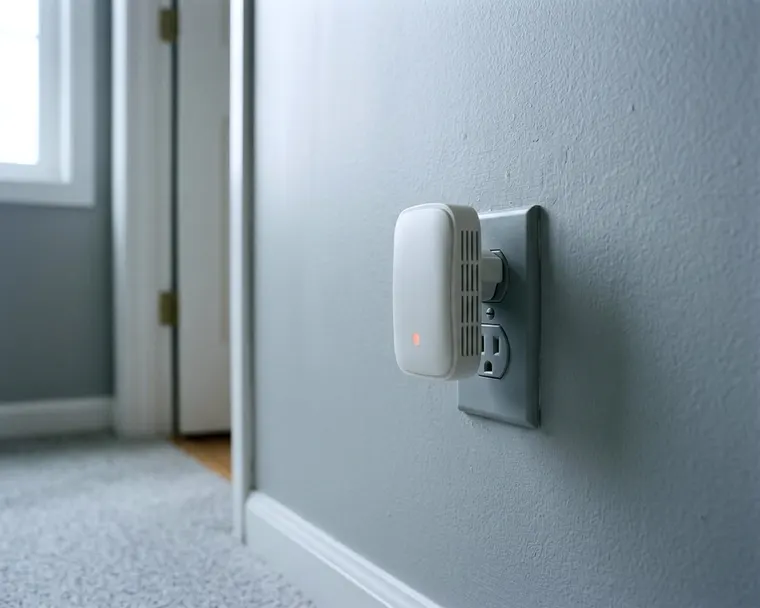
A wifi extender does work to bring a signal into a dead zone. It catches the connection from your main router and broadcasts it further into your home. It can reach a distant bedroom or a garage when placed well.
What an extender does with your existing signal
A wifi range extender picks up your existing signal and repeats it. The standalone device usually plugs straight into a wall outlet. It catches the router's signal and rebroadcasts it into the dead zone.
This solves a very specific physical problem. A standard router sits in one room and pushes radio waves in all directions. Those waves lose strength as they travel through the air. Wood framing, drywall and furniture absorb part of the signal.
Masonry, large metal surfaces and cabinets weaken or reflect the signal.
By the time that signal reaches a distant garage, your devices can barely hear it. An extender bridges this gap by acting like a relay station passing a message down a line. You might see these devices sold as a wifi booster or a repeater. The terms all refer to the same basic technology.
You do not need to replace your current router or run new cables through your walls. You just need an open outlet.
Why the halfway spot works best
Where you plug the device in determines how well it works. The extender relies entirely on the main router. If you place the unit right inside the dead zone, it catches a terrible signal and broadcasts a strong version of that same terrible connection. Your laptop will show full wifi bars, but web pages will still fail to load.
One router maker advises placing an extender roughly halfway between the router and the area with a weak signal. This halfway point gives the device a strong enough connection to catch the internet. It also leaves enough broadcasting range to reach your computer.
The physical design of the unit changes the ideal distance. That maker suggests 25 to 40 feet from the router for extenders with external antennas, and 20 to 35 feet for internal antennas, when few obstacles are in the way. TP-Link also says to avoid cabinets, large metal surfaces and masonry.
You can test a potential spot using your smartphone. Walk to the outlet and check the wifi bars on your screen. You want a solid connection before you plug the extender into the wall. If the phone drops the signal, move closer to the main router and try another outlet.
You want a clear line of sight if possible. These spots ruin the connection.
- Behind a heavy couch or a television set.
- Inside a wooden entertainment center or a media closet.
- Next to a microwave, cordless phone or baby monitor, which can cause interference.
- On the floor, where furniture easily blocks the broadcast.
Why extended wifi can be slower
An extender does not raise your internet speed, and it can lower the speeds your devices see. The device has to manage a link to your main router and a separate link to your phone.
The same maker notes that single radio extenders use one channel for both links. This limitation can cut available throughput by roughly half. The extender has to take turns. It receives a piece of data from the router, pauses, and then sends it to your device.
Light tasks such as reading the news may not show the drop.
Heavy use shows the limit more, such as large downloads or video streaming on several devices at once.
Before you buy new hardware, rule out the basics. You can often fix a poor connection by looking at the common reasons your wifi is slow in the first place.
Extender, wired access point or mesh
An extender is not your only choice for fixing a dead zone. You can also use a wired access point. This involves running an Ethernet cable from your main router all the way to the distant room. You then plug an access point into that cable.
The access point broadcasts a brand new wireless signal for that side of the house. An access point connected over Ethernet does not spend airtime on a wireless backhaul link. The copper wire handles all the communication back to the router.
The wire skips that airtime cost because the access point does not spend airtime relaying. A wired access point can suit a home office if a cable can reach it.
The downside is the manual labor. Running an Ethernet cable through walls or attics is messy work. You might have to drill holes through floorboards or hire someone to pull the wire neatly. An extender skips the cable run and just needs a power outlet.
You also need a free port on the back of your main router to plug the cable into. If you have an older setup, check if you have an open slot. Make sure you understand the difference between a modem and a router so you know which box handles your wireless signal.
Set it up with the same or a new network name
When you set up an extender, you have to choose a name for the new signal. You can give it a brand new name or you can copy your main router. TP-Link's guidance for most setups favors a shared name, though a separate name gives you manual control.
Most setup screens will take your current network name and add a few letters to the end. If your network is HomeNetwork, the new one becomes HomeNetwork_EXT. This creates two separate options in your phone settings.
A separate name lets you choose which hardware your laptop talks to. If you are sitting in the distant bedroom, you manually select the extended network. When you walk back to the living room, you switch back to the main router.
A shared name is easier to set up but does not guarantee smooth roaming. Devices can stay on the router when they are closer to the extender.
Some extenders come with an app that tries to simplify this choice. The software might encourage you to use the same name to make things look tidy. You can try this method first. If your phone clings to a single bar of wifi, log into the settings and try separate names.
Signs your home needs mesh instead
If you find yourself constantly switching between network names, a mesh wifi system may be the better fix. A mesh system replaces your single router with several units placed around the house.
Mesh units are built to work together under one network name, so there is no manual switching.
Mesh may suit a large house with multiple dead zones. TP-Link notes that each added relay repeats the same data again and multiple extenders increase airtime contention.
Mesh systems usually cost more than a basic extender, so compare prices before you buy. You can also decide between wifi 6 or wifi 7 for the new hardware.
If your main router is fairly new and you just need internet in one specific corner, an extender is the practical choice. It usually costs less and plugs into an outlet. You just have to place it carefully and accept the lower speeds.