- Tech Savvy Mag
- Battery and Care
- 9 habits that help your phone battery last longer
9 habits that help your phone battery last longer
Extend daily battery life and protect your phone from permanent damage with nine practical habits that work for both iPhone and Android devices.
Explained by Barrett Ashworth
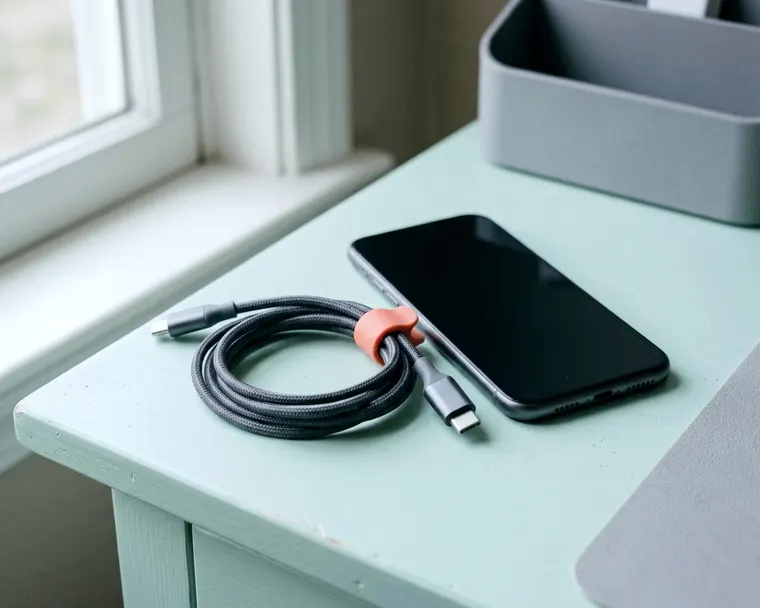
Adjusting a few daily routines will stretch your battery life and delay the day you need a replacement. Heat, heavy background apps and keeping the screen bright are common causes of power drain. Small changes to how you charge and store the device can make a difference.
1. Keep the phone out of heat
Apple names 62°F to 72°F as the ideal comfort zone for iPhone. The internal chemistry of a lithium battery can degrade faster when it gets hot. The same rule applies to Android devices. Google says an Android Pixel battery drains much faster when it is hot, even when the phone is not in use, and that this can damage the battery.
Never leave your phone on a car dashboard in the middle of summer. Avoid placing it in direct sunlight on a patio table or a beach towel. Apple says ambient temperatures higher than 95°F can permanently damage iPhone battery capacity. A damaged battery will not power your device as long on a given charge.
If your phone gets hot while playing a heavy mobile game, take a break. Move the device to a cooler room and let it return to room temperature naturally. Do not put a hot phone in the refrigerator or freezer to speed up the process. Sudden temperature changes can harm the phone.
2. Use optimized or adaptive charging
Holding a battery at a 100 percent charge for long periods can stress it. Both Apple and Google offer settings that learn your daily routine. They delay that final charge until closer to when you use the phone. This can lower the time the battery spends fully charged.
On a Pixel phone, look for Adaptive Charging in the battery settings menu. Google says Adaptive Charging on Pixel learns your habits and can finish charging to 100 percent about an hour before you usually unplug. Google says this can prolong the life of the battery.
On an iPhone, open the Settings app, tap Battery, and choose Battery Health and Charging. Turn on Optimized Battery Charging. Apple says it may defer charging to 100 percent until shortly before you need the battery. Menu names can differ by iOS version.
3. Take off a case that traps heat while charging
Some cases can hold heat against the phone frame. Charging naturally warms the battery up as electricity flows into the cells. When that heat has nowhere to go, the phone can run hotter inside its cover.
Apple says charging an iPhone in certain cases may generate excess heat that can affect battery capacity. If your phone feels warm when you unplug it from the wall outlet, the case may be the problem. Apple says to take the device out of its case if it gets hot while charging.
Take the phone out of its case before you plug it into the wall. A bare phone can shed heat more easily. You can easily slip the case back on once the phone cools down. Making this a daily habit can help protect the battery.
4. Dim the screen and shorten auto lock
The display is often one of the biggest power users on a phone. Keeping it at maximum brightness drains the battery faster. Lowering the brightness slider can add noticeable battery life. You can also let the phone handle this adjustment for you.
Turn on Auto-Brightness in the accessibility settings on an iPhone. On an Android device, select Adaptive brightness. The screen stays dimmer in a dark room and brightens in bright light.
A screen that stays on after you set the phone down wastes power. Google suggests a shorter screen timeout, such as 30 seconds, and Dark theme to save Pixel battery. You will find the Auto-Lock setting under Display and Brightness on an iPhone. Set it to a quick timeout to force the screen to sleep when you finish reading.
5. Find apps that drain power in the background
Some apps pull data from the internet even when you are not actively using them. Social media and weather apps often refresh to show you new information. This quiet background activity eats up battery life steadily over the day.
Open your phone settings and look at the battery usage chart. You will see a list of apps sorted by how much power they consume. If an app you rarely open shows high background usage, you may want to restrict its background activity. Navigation apps and streaming services can be heavy users if left running.
On an iPhone, go to General and tap Background App Refresh. You can turn this off entirely or disable it for specific apps. On Android, tap the app name in the list and review its background battery setting, though Google recommends keeping Optimized turned on for apps.
6. Turn off features you are not using
Radios inside your phone constantly search for a signal if left on. Bluetooth and location services scan the area for nearby devices and satellites. Turning them off when you do not need them can reduce the drain.
If you are in an area with a terrible cellular signal, your phone works overtime. It tries to connect to a distant tower, which can make the phone warm. Turn on airplane mode until you get back to a spot with decent reception. You can still manually turn on wifi while airplane mode remains active.
Location services pull GPS data to figure out exactly where you are. Maps and ride apps need this information, but most flashlight apps do not. Go through your privacy settings and set location access to happen only while using the app. This can limit background tracking that uses battery.
7. Keep the software up to date
Software updates can include fixes that help the phone run more efficiently. Apple advises always using the latest version of iOS. Installing system updates helps your phone manage power well.
You also get updates for individual apps through the App Store or Google Play Store. App developers sometimes release new versions that fix bugs, including ones that drain power. Turn on automatic app updates in your settings so you never have to check manually.
If a bad system update causes a glitch, your device might reboot on its own. There are several reasons why your phone keeps restarting, but software bugs can be one cause. Keeping the operating system and all your apps current can reduce the chances of a rogue program burning through battery life.
8. Store a spare phone half charged
You might keep an older phone in a drawer as a backup device. Leaving it plugged into an outlet for months may wear the battery. Letting it sit completely dead for a long time can cause it to fall into a deep discharge state. Apple says that can leave a battery unable to hold a charge.
For long term storage, Apple advises charging an iPhone battery to around 50 percent. Turn the device completely off before you put it away. Apple advises avoiding both a full charge and a full discharge in storage.
Store the phone in a cool place away from heat. A bedroom closet or a desk drawer can work well. If you store it for a long stretch, check Apple's storage guidance for how often to charge it back to around 50 percent, then turn it off again.
9. Check battery health and know when to replace it
Every battery has a strictly limited lifespan. A lithium battery chemically ages with every single charge cycle you put it through. Over time, it cannot hold as much power. You can check the maximum capacity of an iPhone in the settings.
Open Settings, tap Battery, and select Battery Health and Charging. A lowered capacity means the battery has aged, and a low number is a sign replacement may make sense. You will likely notice the phone struggling to make it through the afternoon on a single charge.
When the battery wears out, you do not always need to buy a brand new phone. A battery replacement from the maker or an authorized repair provider can restore much of the original battery life. It often costs less than a new device and can keep your phone useful longer.
What to do with a swollen battery
Sometimes a heavily degraded battery will swell up inside the phone. You might notice the screen bulging outward or the back glass separating from the metal frame. A swollen battery is a safety hazard.
Do not plug a swollen phone into an outlet, because a damaged battery can be a fire risk. If you can do it safely, turn the phone off and keep it away from anything flammable until a professional looks at it.
Do not try to force the screen back into place or press the swelling down. Take the device to a professional repair shop right away, as they know how to dispose of lithium batteries safely and can replace the cell. Before flying with a damaged battery, ask your airline and check the TSA and FAA websites. Our guide to a portable charger on a plane covers healthy batteries only.